Image color picker and palette extractor
Click anywhere on the image to get the exact color. The palette below updates for every image. Open, drop or paste your own; it never leaves your browser.
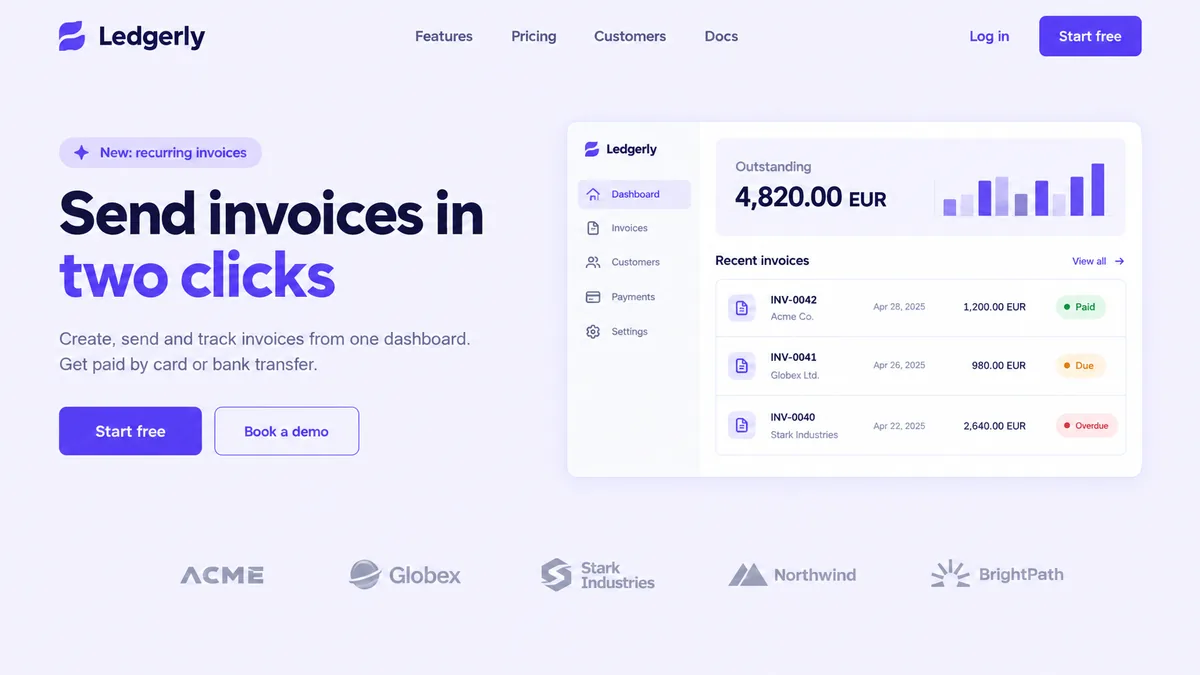
Example: a landing page design
Color under the cursor
#000000rgb(0, 0, 0)hsl(0, 0%, 0%)Picked colors
Click the image to collect colors here.
Color palette from this image
Loading palette...How to pick a color from an image
- Open, drop or paste an image. A screenshot copied with your system shortcut can be pasted directly.
- Move over the image. The magnifier shows the pixels around the cursor, so you can land on a one pixel border.
- Click (or tap) to pick. HEX, RGB and HSL appear on the right with copy buttons, and the color is added to Picked colors.
On a keyboard, focus the image with Tab, move with the arrow keys (Shift moves 10 pixels) and press Enter to pick.
Getting a color palette from an image
The palette groups similar pixels and shows the most common colors first, with the share of the image each one covers. Choose between 3 and 12 colors: fewer gives you the brand colors, more also brings out borders and shadows. Copy it as :root CSS variables, as a Tailwind theme.extend.colors block, or as a plain list of HEX codes.
Examples
- Matching a brand from a screenshot. With the example image above and 6 colors, the palette returns the lavender background (
#f2f1fd, 73% of the pixels), the white of the cards (#fcfcfd), two soft greys used for borders and logos, the violet of the buttons (#6049f0) and the dark text (#3c3b62): the set you need for a stylesheet. - Checking contrast. Pick the text color and the background it sits on, then compare both HEX values in a contrast checker before shipping.
- Building a theme from a photo. Drop a product photo, set 5 colors and paste the Tailwind block into your config to style a landing page around it.
Color picker questions
Is my image uploaded?
No. The image is drawn on a canvas in your browser and every pixel is read locally. Nothing leaves your device, which is why it also works with confidential mockups.
Why does the picked color differ slightly from my design tool?
JPG and WebP compression changes pixel values a little, and screenshots can carry a different color profile than the original file. For exact brand colors, pick from a PNG export of the design.
How is the palette calculated?
The image is scaled down to about 160 pixels on its longest side and the colors are grouped with k-means clustering. Each swatch is the average of one group and the percentage is the share of pixels in it. The same image always gives the same palette.
Which image formats work?
Anything your browser can display: PNG, JPG, WebP, GIF (first frame), AVIF and SVG. You can also paste a screenshot straight from the clipboard.
Can I use the palette in Tailwind CSS?
Yes. The Tailwind tab gives you a theme.extend.colors block. Paste it into tailwind.config.js and use classes such as bg-palette-100 or text-palette-300.