Figma to HTML via PNG export

IMG2HTML does not connect to your Figma account and has no plugin. What it does is convert images, and Figma can export any frame as a PNG in a few clicks. Export the frame, upload the PNG, and you get HTML with Tailwind CSS that rebuilds the design.

Step 1: export the frame from Figma as PNG

  1. Select the frame on the canvas. Export one screen or one section per frame.
  2. In the right sidebar, find the Export section (at the bottom of the Design panel, or under the Properties tab if you only have view access) and click the + icon.
  3. Set the format to PNG and the scale to 2x if the design has small text.
  4. Click Export. With several frames selected, Shift+Cmd+E on a Mac or Shift+Ctrl+E on Windows opens the export dialog for all of them.

These steps follow Figma's own guide, Export static designs from Figma (checked on 23 September 2026).

Step 2: convert the PNG to HTML

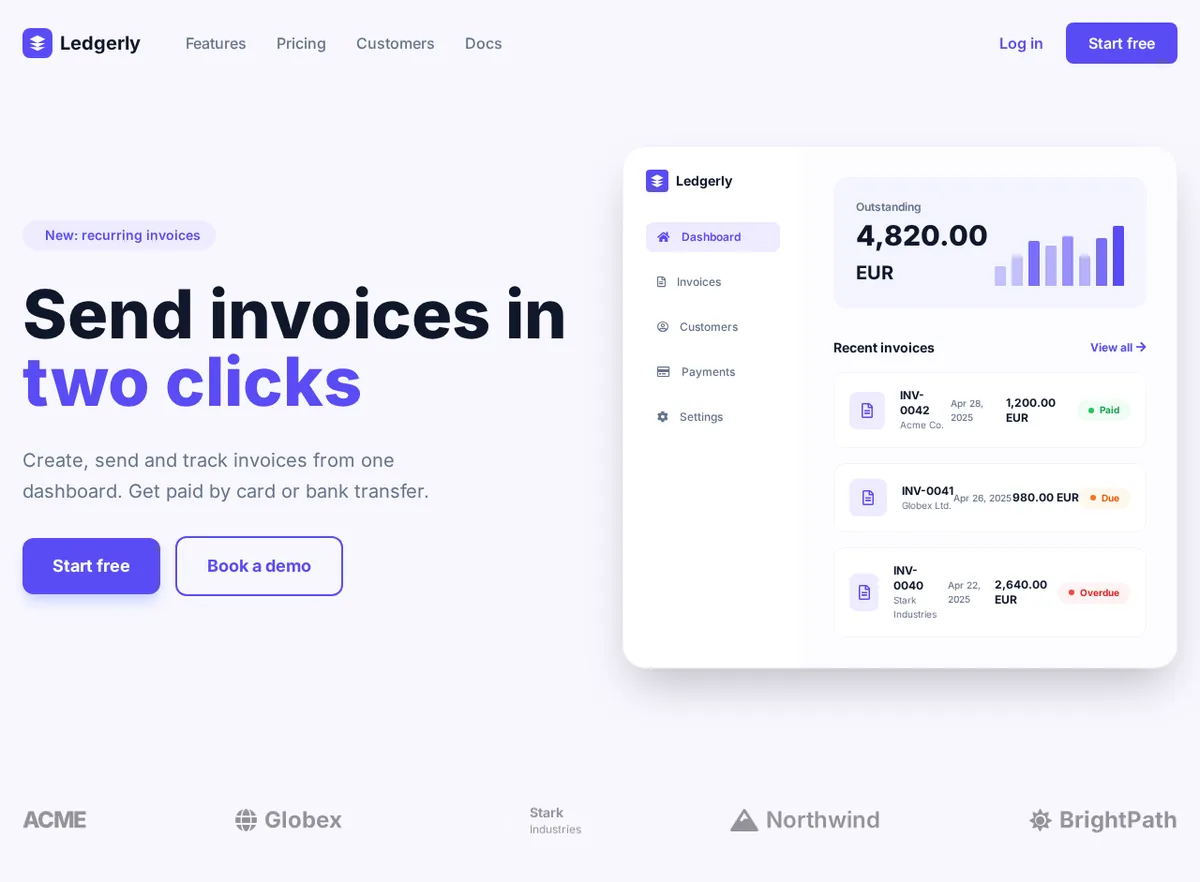
Upload the PNG to IMG2HTML. The frame below, a 1536 x 864 landing page hero for a fictional invoicing app, came back in 23 seconds as a 320-line HTML file. It was generated with an image model for this page rather than exported from a real Figma file, but it is the same kind of flat, pixel-exact PNG that Figma produces, and the output is shown exactly as IMG2HTML returned it.

A desktop design frame exported as PNG
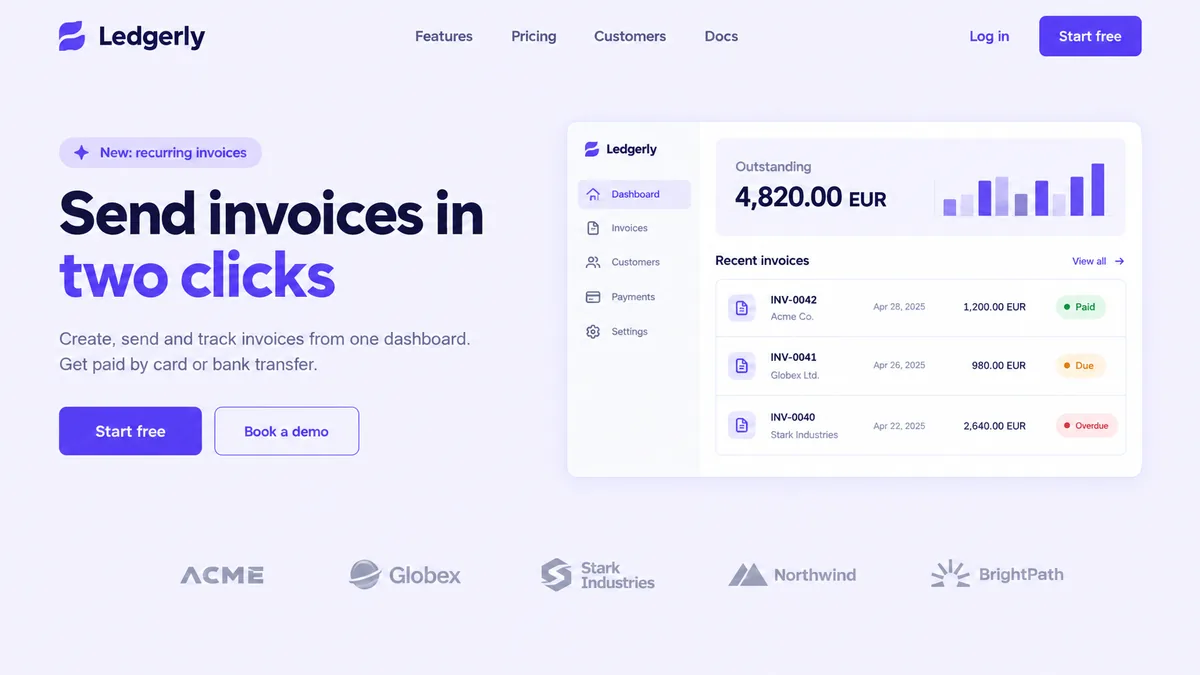
Design frame of a landing page for an invoicing app called Ledgerly: navigation, the headline Send invoices in two clicks, two buttons, and a dashboard card with an outstanding amount, a bar chart and three invoices marked Paid, Due and Overdue, above a row of customer logos
Input: Landing page design frame (PNG, 1536 x 864)
The generated HTML rendered in a browser: navigation, the two-colour headline, Start free and Book a demo buttons, the dashboard card with sidebar, bar chart and invoice list with coloured status badges, and the customer logo row
Output: the generated HTML rendered in Chrome at 1280px wide, unedited. 320 lines of HTML with Tailwind CSS, returned in 23 seconds.

What it got right

  • The whole hero: pill label, two-colour headline, paragraph and the filled and outlined buttons, in the violet of the design.
  • The dashboard card as real HTML: sidebar menu with the active item, the outstanding amount, a bar chart built from divs, and three invoice rows with Paid, Due and Overdue badges in green, orange and red.
  • The customer logo row, with every name as text.

What to fix by hand

  • Logos are stand-ins: the Ledgerly mark is a generic stacked-layers SVG, Globex and Northwind use Font Awesome icons, and the Stark Industries tile uses a bg-dark class the page never defines, so it is invisible. Replace them with your SVGs.
  • The sparkle icon in the pill label is fa-sparkles, which the Font Awesome 5 free set does not include, so it renders as nothing.
  • At 1280 pixels the invoice rows are tight and INV-0042 wraps onto two lines. Give the right column more room or shorten the date column.
ledgerly-frame.html (first lines of the body)
 <body class="min-h-screen">
  <!-- Navigation -->
  <nav class="max-w-7xl mx-auto px-6 py-6 flex items-center justify-between">
   <div class="flex items-center space-x-12">
    <div class="flex items-center space-x-2">
     <div class="w-8 h-8 bg-primary rounded-lg flex items-center justify-center">
      <svg class="w-5 h-5" fill="white" viewbox="0 0 24 24">
       <path d="M12 2L2 7l10 5 10-5-10-5zM2 17l10 5 10-5M2 12l10 5 10-5">
       </path>
      </svg>
     </div>
     <span class="text-xl font-bold text-dark">
      Ledgerly
     </span>
    </div>
    <div class="hidden md:flex space-x-8 text-muted font-medium">
     <a class="hover:text-primary transition" href="#">
      Features
     </a>
     <a class="hover:text-primary transition" href="#">
      Pricing
     </a>
     <a class="hover:text-primary transition" href="#">
      Customers
     </a>
     <a class="hover:text-primary transition" href="#">
Open the full generated page (320 lines)

Step 3: bring it back in line with the design

The model reads the frame, not your file, so the last step is to put back what only Figma knows:

  • Exact colors. In this example it chose #5a4cf5 for the violet and #f8f7ff for the background. Compare them with your color styles, or pick values from the export with the free image color picker, and replace them in one place.
  • Assets. Export logos and icons from Figma as SVG and swap them in for the stand-ins.
  • Breakpoints. A desktop frame gives a desktop-first page. If you have a mobile frame of the same screen, convert it too and merge the responsive classes, or adjust them in the editor.

When this beats hand-coding, and when it does not

It saves the most time on screens with a lot of text and repeated elements: landing pages, dashboards, settings pages, pricing tables. The layout and every label arrive already typed. It saves the least on screens that are mostly custom illustration, or when your team has a component library the markup has to use; then the output is a reference for structure and copy rather than code to ship.

Not working from Figma? The same flow applies to screenshots of live pages and to app mockups. All the examples are collected on the image to HTML converter page.

Figma to HTML questions

Is there a Figma plugin or a direct import?

No. IMG2HTML works from images, so the connection to Figma is the PNG export. That also means it works the same with designs from Sketch, Penpot, Adobe XD, Canva or a screenshot of any of them.

Does it use my Figma layers, auto layout or variables?

No. It only sees the pixels of the exported frame, so layer names, components, auto layout settings and design tokens are not carried over. Spacing and colors are read from the image, which is why exact brand values are worth checking afterwards.

Should I export at 1x or 2x?

2x keeps small labels sharp, which helps the text come back exactly right; 1x is fine for large, simple frames. Very large exports of long pages are better split into one frame per section.

What happens to images and icons in the design?

Photos and illustrations become placehold.co placeholders with a description of what was there. Interface icons are mapped to Font Awesome where a close match exists; logos and custom icons need to be replaced with your own SVGs, as in the example on this page.