Table of Contents
Introduction
Hey there! Ever looked at a website form and thought, "Ugh, that looks kinda meh"? Maybe the checkboxes were tiny or the dropdowns looked like they were from the 90s. We've all been there. Truth is, HTML gives us the basics for web controls, but sometimes they just don't cut it when we want things to look slick and modern. But don't worry! We're gonna dive into the world of tweaking HTML controls and check out some best practices to make your web forms not just work, but look awesome too. So grab a coffee, get comfy, and let's turn those boring controls into something special!
Understanding HTML Controls
The Default Behavior
Before we start messing with things, let's talk about how HTML controls usually work. Think of these controls - checkboxes, radio buttons, dropdown menus - as the building blocks of web forms. Browsers give them default styles and behaviors to keep things consistent across the web. It's like having a basic house plan - it works, but it's not gonna win any design awards.
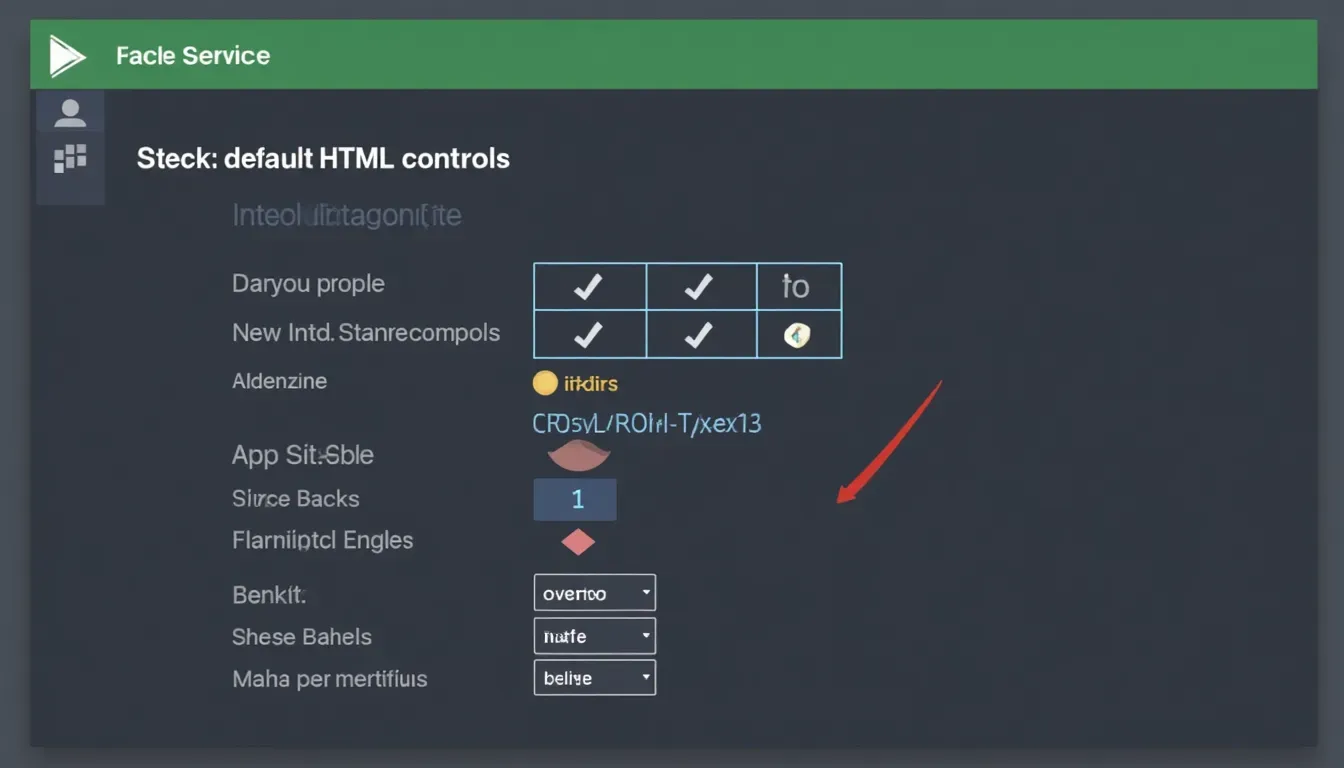
But here's the thing - these defaults can be a bit limiting. Checkboxes and radio buttons are usually tiny and look the same everywhere. Dropdown menus have that same old arrow we've seen a million times. It's hard to make your website stand out when everything looks the same, right?
Why Override HTML Controls?
So why bother changing these default styles? Good question! Here's why it's worth the effort:
- Brand Consistency: Your website should look like, well, your website. Customizing controls makes sure everything fits your brand's style.
- Better User Experience: Bigger, easier-to-use controls can make forms less frustrating and more likely to be completed.
- Accessibility: Custom styles can actually make controls easier to see and use, especially for people with visual impairments.
- Modern Look: Let's face it, old-school controls can make your site look outdated. Customizing keeps things fresh.
But here's the catch - changing these controls isn't as easy as just throwing some CSS at it. We need to be smart about it to make sure we're making things better, not worse.
Best Practices for Overriding HTML Controls
Alright, let's roll up our sleeves and get into the nitty-gritty of making HTML controls look good. We'll cover some tried-and-true methods that balance looks with functionality.
Using the CSS appearance Property
The CSS
appearance
property is your new best friend when it comes to changing default styles. It lets you strip away the browser's built-in styling, giving you a blank canvas to work with.
Why It Matters:
By using
appearance: none;
, you're basically telling the browser, "Hey, forget what you know about how this should look. I've got this." It makes it way easier to apply your own designs without fighting against what the browser wants to do.
Pro Tip:
Always pair
appearance: none;
with resetting other styles like border, background, and padding. This helps make sure things look the same across different browsers.
/* Example: Removing default styles from a checkbox */
input[type="checkbox"] {
    appearance: none;
    width: 20px;
    height: 20px;
    border: 2px solid #555;
    border-radius: 4px;
    background-color: #fff;
    cursor: pointer;
}

/* Adding a custom checkmark */
input[type="checkbox"]:checked::before {
    content: "✔";
    position: absolute;
    top: 2px;
    left: 5px;
    color: green;
    font-size: 16px;
}
You can try this feature yourself at img2html.com .
I remember the first time I used the appearance property - it was like magic! Suddenly, those boring old checkboxes matched my site's colors perfectly. Game-changer!
Styling Checkboxes and Radio Buttons
Checkboxes and radio buttons can be a pain to style. But with the right tricks, you can make them look awesome and still work great.
Steps to Customize:
-
Remove Default Look: Use
appearance: none;to get rid of the browser's styling. -
Set Size and Shape: Use
width,height, andborder-radiusto make your controls the right size and shape. -
Add Visual Cues: Use
::beforeor::afterto add checkmarks or other indicators. - Handle Different States: Make sure hover, focus, checked, and disabled states all look different and clear.
Example: Custom Radio Button
/* Remove default styling */
input[type="radio"] {
    appearance: none;
    width: 20px;
    height: 20px;
    border: 2px solid #555;
    border-radius: 50%;
    background-color: #fff;
    cursor: pointer;
    position: relative;
}

/* Add the inner dot for checked state */
input[type="radio"]:checked::after {
    content: "";
    width: 10px;
    height: 10px;
    background-color: blue;
    border-radius: 50%;
    position: absolute;
    top: 4px;
    left: 4px;
}
Isn't it cool how a few lines of CSS can turn a boring radio button into something that looks modern and sleek?
Customizing Select and Option Elements
Select menus are another area where a little customization can go a long way. But styling the dropdown arrow and the options list can be tricky.
Approach:
-
Wrap the Select Element: Use a wrapper
<div>to position a custom arrow. -
Hide Native Arrow: Use
appearance: none;to get rid of the default arrow. - Add Custom Arrow: Use a pseudo-element or background image to add your own arrow.
- Style the Options: Keep in mind that styling dropdown options is limited. For fancy stuff, you might need JavaScript or a custom dropdown.
Example: Custom Select Menu
Personal Opinion: Customizing select menus can be a bit of a headache, but it's worth it when you see how much better they look. Just don't go overboard - keep it simple and easy to use!
Handling Search Inputs
Search inputs are super important for user-friendly navigation, but they often look pretty bland out of the box. Sprucing them up can make your site look more polished and easier to use.
Techniques:
-
Remove Default Look: Use
appearance: none;to get rid of the browser's styling. - Add Custom Icons: Use pseudo-elements or background images to add search icons.
- Adjust Spacing: Make sure there's enough padding so text doesn't overlap with icons.
- Deal with Clear Buttons: Customize or remove the little 'x' button for a consistent look.
Example: Custom Search Input
input[type="search"] {
    appearance: none;
    padding: 10px 40px 10px 10px;
    border: 2px solid #555;
    border-radius: 4px;
    background-color: #fff;
    background-image: url('data:image/svg+xml;utf8,');
    background-repeat: no-repeat;
    background-size: 20px;
    background-position: right 10px center;
    cursor: pointer;
}

/* Remove clear button in Chrome */
input[type="search"]::-webkit-search-cancel-button {
    display: none;
}
You can try this feature yourself at img2html.com .
Customizing a search input is like giving your car a fresh paint job. It doesn't change how the engine works, but it sure makes the ride more enjoyable!
Ensuring Cross-Browser Compatibility
Okay, so you've spent ages making your controls look perfect, but does it look the same in all browsers? Making sure everything works across different browsers is super important for giving everyone a good experience.
Strategies:
- Use Vendor Prefixes: Some CSS properties need special prefixes to work in different browsers.
- Test Like Crazy: Check your forms in all the major browsers - Chrome, Firefox, Safari, Edge, and even older versions if you need to.
- Fallbacks and Polyfills: For stuff that doesn't work in some browsers, use fallbacks or polyfills to make sure everything still functions.
- Responsive Design: Make sure your custom controls look good on all screen sizes and devices.
Example: Vendor Prefixes for appearance
input[type="checkbox"] {
    -webkit-appearance: none; /* Chrome, Safari, Opera */
    -moz-appearance: none;    /* Firefox */
    appearance: none;
}
I once spent a whole afternoon fixing a custom radio button that looked great in Chrome but was all wonky in Firefox. Adding
-moz-appearance: none;
fixed it right up!
Maintaining Accessibility
Let's be real: making beautiful forms is great, but making sure everyone can use them is non-negotiable. Accessibility makes your forms usable for everyone, including people with disabilities.
Best Practices:
- Use Semantic HTML: Proper use of labels, fieldsets, and legends makes forms easier to understand.
- Keyboard Navigation: Make sure people can use your custom controls with just a keyboard.
- Aria Attributes: Use ARIA attributes to give extra info to assistive technologies.
- Contrast and Visibility: Make sure there's enough color contrast so everyone can read your forms easily.
- Screen Reader Support: Test your forms with screen readers to make sure they work well.
Example: Accessible Custom Checkbox
.hiddenCheckbox {
    appearance: none;
    width: 20px;
    height: 20px;
    border: 2px solid #555;
    border-radius: 4px;
    background-color: #fff;
    cursor: pointer;
    position: relative;
}

.hiddenCheckbox:checked::before {
    content: "✔";
    position: absolute;
    top: 2px;
    left: 5px;
    color: green;
    font-size: 16px;
}

/* Visually hidden class for accessibility */
.sr-only {
    position: absolute;
    width: 1px;
    height: 1px;
    padding: 0;
    margin: -1px;
    overflow: hidden;
    clip: rect(0,0,0,0);
    white-space: nowrap;
    border: 0;
}
You can try this feature yourself at img2html.com .
Wouldn't it be a bummer to find out your awesome-looking form is unusable for some people?
Performance Considerations
While making things look good is important, we can't forget about performance. If your forms are slow, users are gonna get frustrated real quick.
Tips:
- Keep CSS Simple: Don't go overboard with styles. Remove anything you're not using.
- Optimize Images and Icons: Use SVGs or compressed images for icons to keep things loading fast.
- Go Easy on JavaScript: Try to use CSS for styling as much as you can, and only use JavaScript when you really need to.
- Use Browser Caching: Make sure your CSS files are cached so pages load faster after the first visit.
Nobody likes a slow form. It's like waiting for your toast to pop up in slow motion - annoying and totally avoidable!
Example: Optimizing Custom Icons with SVG
.select-wrapper::after {
    content: '';
    position: absolute;
    top: 50%;
    right: 10px;
    transform: translateY(-50%);
    width: 12px;
    height: 12px;
    background-image: url('data:image/svg+xml;utf8,');
    background-size: contain;
    background-repeat: no-repeat;
}
Common Pitfalls and How to Avoid Them
Customizing HTML controls can be tricky. Here are some common mistakes and how to avoid them:
- Overcomplicating Styles: Keep it simple. Too much CSS can be hard to manage.
- Ignoring Accessibility: Always make sure your forms work for everyone.
- Cross-Browser Issues: Test in different browsers to catch weird behavior.
- Performance Problems: Heavy CSS or JavaScript can slow things down. Keep it light.
- Forgetting About Mobile: Make sure your custom controls work well on phones and tablets too.
I once made a fancy checkbox that looked amazing on my desktop, but on mobile, it was tiny and hard to click. Lesson learned: always test on different devices!
Tools and Libraries to Simplify Customization
Sometimes, a little help goes a long way. Here are some tools and libraries that can make customizing HTML controls easier:
- Styled Components: Great for React projects, lets you write CSS in your JavaScript files.
- Tailwind CSS: A utility-first CSS framework that makes it easy to style things quickly.
- Bootstrap: Offers pre-styled form controls that you can easily customize.
- jQuery UI: It's a bit old school, but still offers components you can customize a lot.
- Select2: Makes select menus better with features like search and tagging.
Think of these tools like Swiss Army knives for web development - they're versatile and can help you solve all sorts of problems.
Example: Using Tailwind CSS for Custom Checkboxes
<label class="inline-flex items-center">
  <input type="checkbox" class="form-checkbox h-5 w-5 text-blue-600" />
  <span class="ml-2">Agree to terms</span>
</label>
You can try this feature yourself at img2html.com .
Isn't it great when tools can save you time and keep your code clean?
Advanced Techniques
Ready to take your skills to the next level? Let's look at some advanced techniques for creating really unique and interactive controls.
Animations and Transitions
Adding animations and transitions can make your controls feel more responsive and fun to use.
Example: Animated Checkbox
input[type="checkbox"] {
    appearance: none;
    width: 20px;
    height: 20px;
    border: 2px solid #555;
    border-radius: 4px;
    background-color: #fff;
    cursor: pointer;
    transition: all 0.3s ease;
    position: relative;
}

input[type="checkbox"]:checked::before {
    content: "✔";
    position: absolute;
    top: 0;
    left: 4px;
    color: green;
    font-size: 16px;
    transform: scale(1.2);
}
Adding a smooth transition to a checkbox checkmark not only looks cool but also gives users a nice little bit of feedback. It's the little things that make a big difference!
Custom Validation Messages
Make your forms more user-friendly by adding custom validation messages that look good and actually help people.
Example: Custom Validation
.form {
    /* Styles for the form */
}

.error-message {
    color: red;
    font-size: 12px;
    display: none;
}

input:invalid + .error-message {
    display: block;
}
Think of custom validation messages like friendly reminders from a helpful neighbor. They guide users without them having to guess what went wrong.
Creating Accessible Custom Controls
Even when we're doing fancy stuff, we gotta keep accessibility in mind. Making sure your custom controls are accessible makes them better for everyone.
Techniques:
- Use ARIA Roles: Give your custom elements the right ARIA roles.
- Focus Management: Make sure people can use your controls with a keyboard easily.
- Screen Reader Testing: Regularly check your controls with screen readers to make sure they work well.
Example: Accessible Toggle Switch
input:checked ~ .dot {
    transform: translateX(6px);
    background-color: green;
}

input:focus + .block {
    box-shadow: 0 0 2px 2px lightblue;
}
Who knew switches could be both stylish and inclusive? It's like having your cake and eating it too!
Conclusion
And there you have it - a complete guide to making HTML controls look awesome while still working great. By understanding how controls usually work, using smart customization techniques, making sure things work in different browsers, keeping accessibility in mind, and thinking about performance, you can create forms that not only look good but are also user-friendly and work for everyone.
Remember, the goal isn't just to make things pretty (though that's definitely a nice bonus) but to make the overall user experience better. So, next time you're faced with a boring form control, you've got the tools and know-how to turn it into something special.
Ready to give your web forms a makeover? Start using these tips today and watch your websites become more engaging, accessible, and just plain better looking. And hey, let us know how it goes - we'd love to hear about how these tips have helped your projects!
You can try this feature yourself at img2html.com .