Table of Contents
Intro
Ever tried to share a Word doc online and realized not everyone's got Microsoft Word? Or maybe you wanted to show a Word doc on your website without making people download it? You're not the only one! These days, being able to show Word docs in HTML using JavaScript is pretty darn useful.
If you're a developer trying to make your web apps better, a business person wanting to give your clients better stuff, or just curious about how it all works, this guide's for you. We're gonna dive into the latest trends, strategies, and tools that make showing Word docs in HTML not just possible, but actually pretty easy and user-friendly. So grab a coffee, get comfy, and let's explore this cool mix of document handling and web development together!
Getting the Basics
What's HTML and JavaScript?
Before we get into showing Word docs in HTML, let's quickly go over what HTML and JavaScript are.
HTML is like the skeleton of a web page. It organizes the content, defining stuff like headings, paragraphs, and links. It's the basic structure that holds everything together.
JavaScript is what makes web pages interactive and dynamic. It's the language that makes things move, validate forms, or update in real-time.
Together, HTML and JavaScript are like the dynamic duo of the web world. But how do they help us show Word docs? Let's find out.
Why Show Word Docs in HTML?
In the work world, Word docs are everywhere. Reports, resumes, manuals, contracts—you name it. But when it comes to putting them on websites, Word docs can be a pain. They often need special software to open, and sometimes they look weird on different devices or browsers.
Showing Word docs directly in HTML has some big perks:
- Anyone can see them : No need for special software.
- They look the same everywhere : The formatting stays intact.
- You can add cool stuff : Like links, videos, and other interactive elements.
- Search engines like it : Content in HTML can be found by search engines, making your stuff easier to find.
So yeah, being able to put Word docs on web pages is pretty handy in today's digital world.
What's Hot in Document Display
Embracing Web Standards
Web standards have come a long way. They now let developers create rich, interactive experiences without relying on third-party plugins. This shift towards standards-compliant methods ensures better compatibility, security, and performance.
When it comes to showing Word docs, embracing web standards means using tech like HTML5, CSS3, and modern JavaScript frameworks. These technologies make it easier to present Word docs in a web-friendly format.

Embracing Modern Web Standards
Leveraging the latest web technologies for better document display.
Client-Side vs. Server-Side Stuff
Another big trend is choosing between client-side and server-side rendering.
- Client-Side Rendering means handling the conversion and display of Word docs directly in the user's browser using JavaScript. This can make things load faster initially and reduce server load, but it depends a lot on how powerful the user's device is.
- Server-Side Rendering means processing the Word docs on the server before sending the resulting HTML to the client. This can ensure more consistent performance across different devices and make things simpler on the client side.
Choosing the right approach depends on what you need for your project, like how big it needs to be, how fast it needs to run, and what kind of experience you want users to have.
How to Display Effectively
Turning Word Docs into HTML
One of the main ways to show Word docs in HTML is by converting them into HTML format. You can do this in a few ways:
- Do it by hand : Open the Word doc in Microsoft Word and save it as an HTML file. It's simple, but not great if you have lots of documents.
- Do it automatically : Use scripts or software to convert Word docs to HTML programmatically. This is more efficient, especially when dealing with lots of documents.
There are JavaScript libraries like Mammoth.js that can automatically convert Word docs into clean, semantic HTML, keeping the document structure and formatting intact. You can try this feature yourself at img2html.com .
Using JavaScript Libraries and APIs
Using existing JavaScript libraries and APIs can make it much easier to show Word docs in HTML. Some popular options include:
- Mammoth.js : Focuses on converting .docx files to HTML, making sure the output is clean and doesn't have unnecessary styling.
- Docx.js : Another library that can read and show Word docs directly in the browser.
- Office.js : Microsoft's JavaScript API for Office, which gives you lots of ways to work with Word docs.
These tools not only handle the conversion process but also let you customize how things look and work. You can enhance your projects by integrating these libraries, ensuring smooth and efficient document display.
Must-Have Tools
Popular JavaScript Libraries
Choosing the right JavaScript library is crucial for showing documents efficiently and accurately. Here are some good options:
- Mammoth.js : Known for converting Word docs into clean HTML without extra stuff. Developers who want semantic HTML love it.
- Docx.js : Gives you more control over how things look, letting you customize the document's appearance and behavior more.
- Pizzip and Docxtemplater : Useful for both reading and creating Word docs, making them versatile for various document-related tasks.
Selecting the right library depends on your specific needs, such as the level of customization required and the complexity of the documents you're handling.
Online Conversion Tools
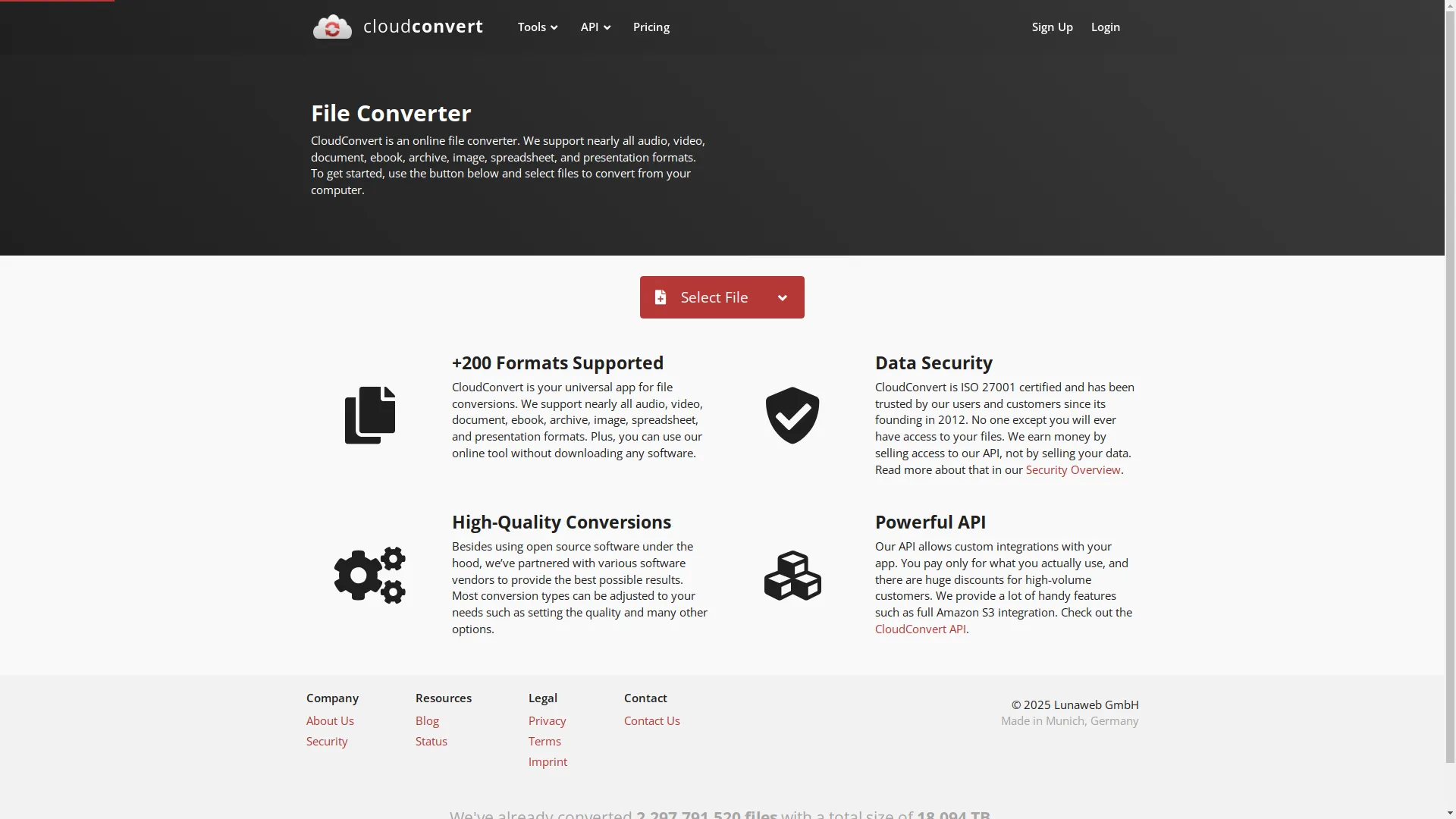
Sometimes, using an online tool to convert docs can be easier, especially for one-off tasks. Services like Zamzar and CloudConvert let you upload a Word doc and get an HTML version back. While convenient, these might not be great for sensitive documents or projects that need a lot of automation and integration.
For ongoing projects, integrating a reliable library or API into your workflow is usually the better choice, offering more control and security.
Tech Advancements
Real-Time Teamwork Features
Modern web apps often need real-time collaboration features. Advances in tech have made it possible to show and edit Word docs in HTML with live updates, letting multiple people work on the same document at the same time. Tools like Google Docs API and Microsoft's Office 365 APIs provide the infrastructure needed to implement these features smoothly.
These APIs allow for real-time synchronization, conflict resolution, and seamless user experiences, enhancing collaborative workflows.
Beefed-Up Security
With more focus on data security, handling Word docs in HTML requires strong security measures. This includes:
- Secure Transmission : Making sure documents are sent over HTTPS to protect against interception.
- Authentication and Authorization : Limiting access to sensitive documents through user authentication and role-based permissions.
- Content Sanitization : Preventing cross-site scripting (XSS) attacks by cleaning any dynamic content loaded from Word docs.
Implementing these security measures is super important to keep the documents safe and confidential.
Enhancing Document Security
Implement robust security protocols to protect your documents.
Keeping Up with Trends
Mobile-Friendly Design
In a world where most web traffic comes from mobile devices, making sure Word docs look good on smaller screens is essential. This involves:
- Responsive Design : Using CSS media queries to adjust the layout based on the device's screen size.
- Flexible Content : Making sure images, tables, and other elements resize properly without messing up the layout.
- Touch-Friendly Interactions : Ensuring that any interactive elements, like links or buttons, are easy to use on touchscreens.
Making things mobile-friendly not only improves user experience but also helps with SEO, as search engines prefer mobile-friendly content.
Making It Accessible
Accessibility is super important in modern web development. When showing Word docs in HTML, it's crucial to make sure everyone can access the content, including people with disabilities. Key things to consider include:
- Semantic HTML : Using the right HTML tags to show the structure and meaning of the content, helping screen readers and other assistive technologies.
- Alt Text for Images : Providing descriptions for images so that visual content is understandable to users who can't see it.
- Keyboard Navigation : Making sure all interactive elements can be used with a keyboard, helping users with motor impairments.
By prioritizing accessibility, you make your content inclusive and compliant with legal standards like the Web Content Accessibility Guidelines (WCAG) .
Building Good Networks
Hooking Up with Content Management Systems
For businesses and developers, integrating Word document display functionality with Content Management Systems (CMS) can make content delivery smoother. Popular CMS platforms like WordPress , Drupal , and Joomla have plugins and extensions that make it easier to embed and show Word docs using JavaScript. This integration allows for easy content updates, user management, and consistent styling across the website.
By connecting with CMS platforms, you streamline the process of managing and displaying documents, ensuring that content remains organized and accessible.
Using Cloud Services
Cloud services provide scalable and reliable solutions for managing and showing Word docs. Services like Microsoft Azure , Google Cloud , and Amazon Web Services (AWS) offer APIs and storage solutions that can host your documents and provide the necessary infrastructure for high-performance delivery. Using these services can free you from the complexities of server management, letting you focus on improving user experience and functionality.
Leveraging cloud services ensures that your document display system is robust, scalable, and capable of handling varying loads with ease.
Winning Strategies
Best Ways to Code
Implementing effective strategies in your code is key to successfully showing Word docs in HTML. Here are some best practices to follow:
- Modular Code : Break down your code into reusable parts. This makes your code more organized and easier to maintain and extend.
- Error Handling : Implement robust error handling to gracefully manage issues like failed document conversions or network errors.
- Performance Optimization : Minimize the use of heavy libraries and optimize your code to ensure fast loading times and smooth interactions.
Adopting these coding practices will enhance the reliability and efficiency of your document display functionality.
Testing and Making It Fast
Testing is a crucial part of the development process. To make sure your Word document display functionality works smoothly across different environments, consider the following:
- Cross-Browser Testing : Check that your implementation works consistently across all major browsers, including Chrome, Firefox, Safari, and Edge.
- Responsive Testing : Test your documents on various devices and screen sizes to ensure that the layout adjusts appropriately.
- Performance Monitoring : Use tools like Google Lighthouse or WebPageTest to monitor and optimize performance metrics such as load times, rendering speed, and interactivity.
Regular testing not only identifies potential issues early but also ensures a smooth and reliable user experience.
User Experience and Performance Stuff
Why UX Matters in Showing Documents
User experience (UX) is super important when showing Word docs in HTML. A bad UX can lead to frustration, reduced engagement, and ultimately, a negative view of your website or application. Here are some key things to focus on:
- Easy Navigation : Users should be able to move through the document easily, with clear headings, links, and navigation aids.
- Visual Consistency : Keeping a consistent visual style ensures that the document fits with the overall design of your website, providing a cohesive experience.
- Interactive Elements : Adding interactive elements like collapsible sections, search functionality, and embedded media can make things more engaging and usable.
By prioritizing UX, you ensure that your users can access and interact with the document content in a meaningful and enjoyable way.
Important Things to Keep an Eye On
To make sure your document display implementation is effective, it's essential to track performance metrics. Some key Performance Indicators (KPIs) to monitor include:
- Load Time : How long it takes for the document to fully display. Faster load times make users happier and reduce bounce rates.
- Rendering Accuracy : How well the HTML version of the document keeps the original formatting and structure of the Word document.
- User Engagement : Things like time spent on the page, interaction rates, and user feedback can show how effectively users are engaging with the document.
- Error Rates : Monitoring how often errors occur and what types of errors happen during document display helps in identifying and fixing issues quickly.
Regularly monitoring these KPIs allows you to make data-driven decisions to optimize and improve your document display functionality continuously.
Wrapping Up
Quick Recap
Showing a Word document in HTML using JavaScript is a powerful tool that bridges the gap between traditional document formats and modern web experiences. By understanding the basics, keeping up with the latest trends, and implementing effective strategies, you can create seamless and user-friendly integrations that enhance the way information is shared and accessed online.
What to Do Next
Remember, the world of web development is always changing, and staying updated with the latest tools and best practices is key to staying ahead. So, why wait? Start experimenting with the tools and techniques we've talked about, and transform the way you present Word documents on the web today!
Ready to take your web projects to the next level? Try out these strategies and watch your document display capabilities soar! Share your experiences or ask questions below – let's work together to make the web more interactive and accessible!