Convert a Google Doc to HTML with ease! Discover methods, tools, and tips for seamless document-to-web conversions. Boost SEO and optimize your content!
Introduction
Ever looked at a Google Doc and thought, "How the heck do I get this on my website?" Whether you're a writer, teacher, marketer, or coder, turning a Google Doc into HTML can open up a world of possibilities. Just imagine taking your well-crafted docs and seamlessly putting them on the web, looking just as good as they do on paper.
Now, I know what you're thinking - HTML sounds scary if you're not a tech whiz. But don't sweat it! We've all been there. This guide is here to walk you through everything you need to know about converting Google Docs to HTML. From the basics to the fancy stuff, we've got your back. So grab a coffee, get comfy, and let's dive into this conversion adventure together!
Understanding HTML and Google Docs
Before we get into the nitty-gritty, let's break down what we're dealing with here.
HTML
is like the skeleton of a website. It's what gives structure to all the content you see online, from headings and paragraphs to images and links. Think of it as the blueprint that tells your browser how to display a webpage.
Google Docs
, on the other hand, is that awesome tool we use for writing stuff online. It's great for reports, essays, and pretty much any text-based content. People love it because it's easy to use and great for teamwork.
When you convert a Google Doc to HTML, you're basically translating your document into a language that web browsers can understand. This way, all your formatting and structure stay intact when you put it on a website.
Why Convert Google Docs to HTML?
You might be wondering, "Why bother with all this conversion stuff?" Great question! Here's why it's worth the effort:
Web Integration
Converting to HTML lets you easily put your content on websites or blogs. Super handy for publishing articles or tutorials online.
Better Formatting Control
HTML gives you more power over how your content looks. You can tweak styles, add videos, and even make things interactive - stuff you can't do in Google Docs.
SEO Perks
Good HTML structure can help your website show up better in search results. Search engines love well-organized content!
Play Nice with Developers
If you're working with web developers, giving them HTML makes their job way easier. They can plug your content into a website without having to reformat everything.
Save Time with Automation
If you're dealing with tons of documents, automating the conversion process can save you a bunch of time and headaches.
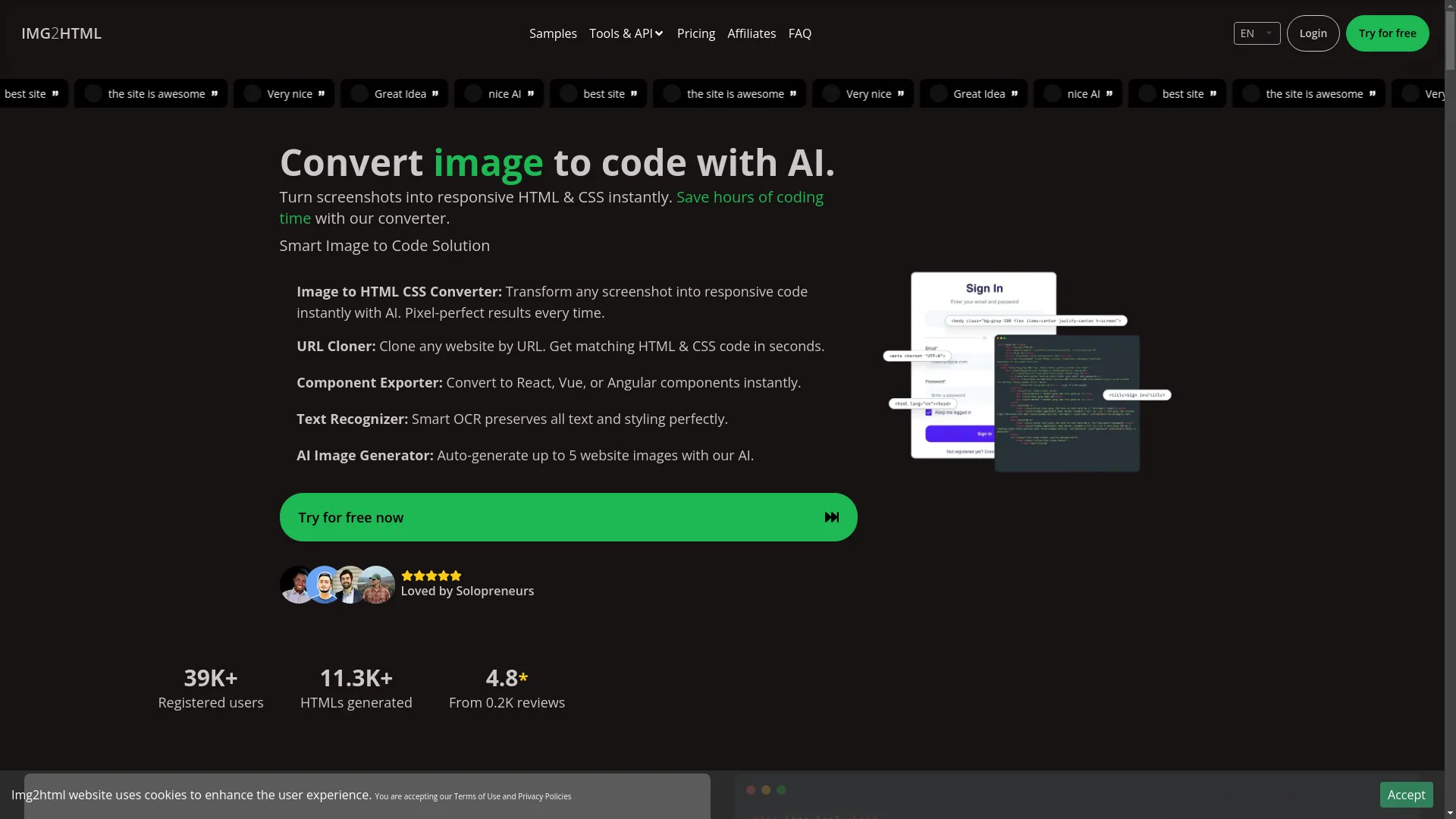
*Call-to-Action*: You can try this feature yourself at
img2html.com
.
Methods to Convert Google Docs to HTML
Alright, now let's get into the "how" part. There are a few ways to turn your Google Doc into HTML, each with its own pros and cons.
Using Google Docs' Built-in Export Feature
Open your Google Doc
Click on "File" in the top-left corner, then hover over "Download"
Choose "Web Page (.html, zipped)"
Once it downloads, unzip the file to get your HTML
Pros:
Quick and easy
No need for extra tools
Cons:
The HTML can be a bit messy
Not much room for customization
I remember the first time I tried this - I was so excited to see my document as HTML, but man, that code was a mess! It took some getting used to, but I figured out how to clean it up eventually.
Utilizing Third-Party Tools
If you want cleaner HTML or more options, third-party tools might be your best bet. Tools like
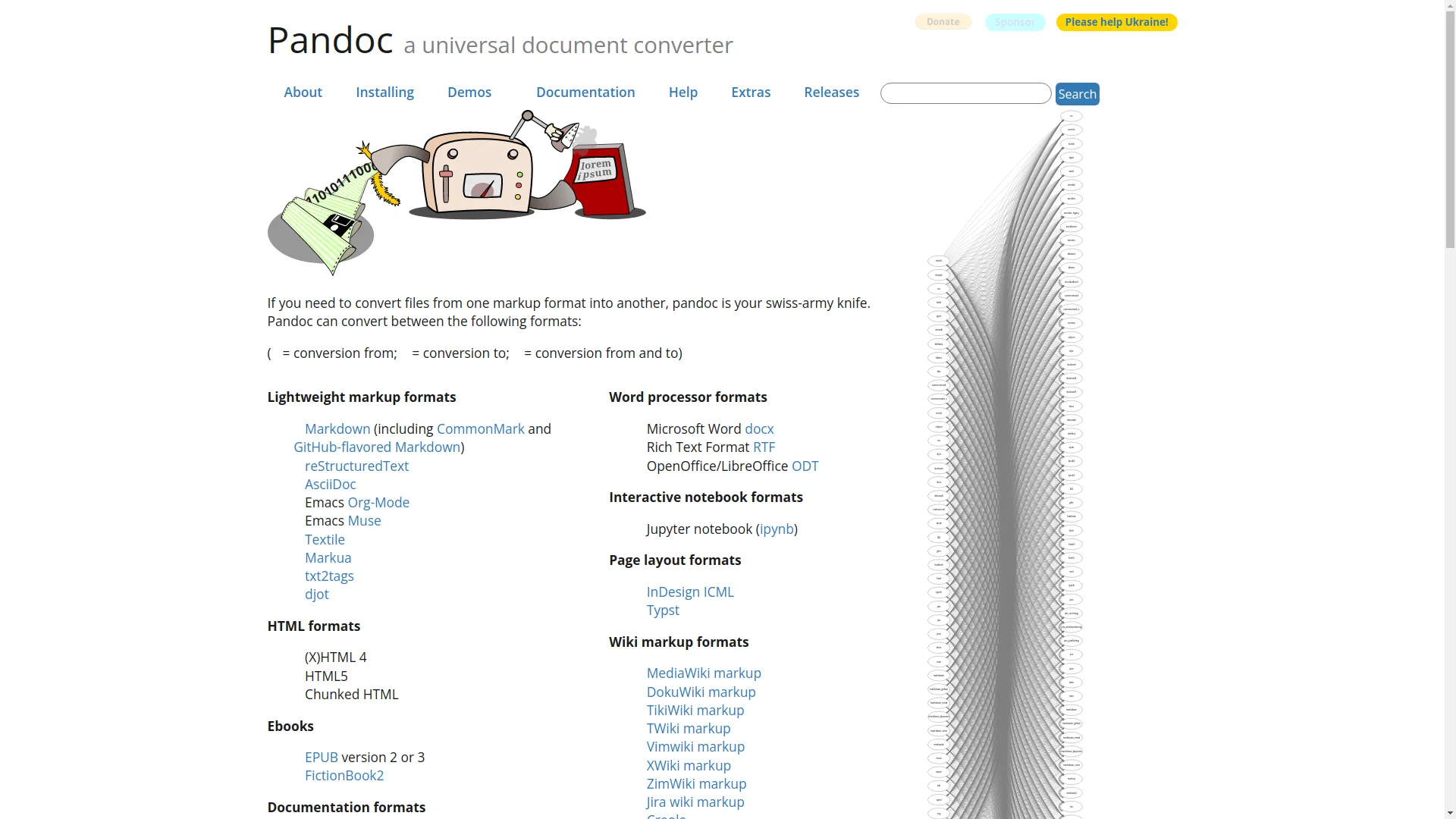
Pandoc
or online converters like
Convertio
usually give you nicer HTML code.
Example: Using Pandoc
Pandoc is like a Swiss Army knife for document conversion. It can handle all sorts of formats, including Google Docs (after you save it as a Word doc).
Save your Google Doc as a Word file (File > Download > Microsoft Word)
Install Pandoc from their website
Use this command in your terminal:
pandoc -s yourdocument.docx -o output.html
Check out your new HTML file in a text editor
Pros:
Cleaner HTML that makes more sense
Lots of options to play with
Cons:
Takes a bit of tech know-how
Setting it up can be a pain
Pandoc's like that super-smart friend who speaks every language - super useful, but sometimes you need to buy them a coffee to get them to help!
Manual Conversion
For the control freaks out there (no judgment, I'm one too), you can always convert things by hand. This means copying your content from Google Docs and pasting it into an HTML editor, then adding all the HTML tags yourself.
Copy everything from your Google Doc
Paste it into a code editor (like VS Code or even an online editor)
Add HTML tags around everything - like
<h1>
for headings,
<p>
for paragraphs, etc.
Add some CSS to make it look pretty
Pros:
Total control over your HTML
Great way to learn HTML
Cons:
Takes forever, especially for long documents
Easy to make mistakes
Ever felt like giving your keyboard a workout? Manual conversion's your chance!
Using Google Apps Script
For the tech-savvy folks who like to automate things, Google Apps Script lets you create custom scripts to convert your Docs to HTML.
Basic Steps:
In your Google Doc, go to Extensions > Apps Script
Write a script to turn your document into HTML
Run the script and grab your HTML
function convertDocToHTML() {
    var doc = DocumentApp.getActiveDocument();
    var body = doc.getBody();
    var html = convertElement(body);
    Logger.log(html);
}

function convertElement(element) {
    var html = '';
    // Add your conversion logic here
    return html;
}
Pros:
Can be customized to fit exactly what you need
Great for automating big jobs
Cons:
You need to know how to code
Can be complicated to set up
Think of Google Apps Script like building your own LEGO set - you've got all the pieces to make something awesome, but it takes some planning and effort.
Best Tools for Google Doc to HTML Conversion
Picking the right tool can make or break your conversion experience. Here are some of the best options out there, each good for different needs and skill levels.
This is an open-source tool that turns Word files (remember, you can save Google Docs as Word files) into HTML. It's great for developers who want to build conversion into their own apps.
Open-source, so you can tinker with it
Handles lots of HTML features and styling
Perfect for developers who want to integrate conversion into their projects
Tips for Optimizing the HTML Output
Converting your Google Doc to HTML is just the start. To make sure it looks good and works well on the web, here are some tips:
1. Clean Up the Code
Often, the HTML you get from conversion tools is messy. Use tools like
HTML Tidy
or
Prettier
to clean it up and make it easier to read and work with.
2. Use Semantic HTML
Semantic HTML means using tags that describe what the content is, not just how it looks. For example, use
<article>
for a blog post,
<section>
for different parts of your page, and
<header>
for the top part of your page.
Example: Instead of wrapping everything in
<div>
tags, use more specific tags like
<section>
or
<article>
where it makes sense.
3. Make Images Web-Friendly
Make sure your images aren't huge files that'll slow down your page. Use tools like
ImageOptim
or online services like
TinyPNG
to compress images without making them look bad.
4. Make It Look Good on All Devices
Your HTML should look good on computers, phones, and tablets. Use CSS frameworks like
Bootstrap
or
Tailwind CSS
to help make your page responsive (that means it adjusts to fit different screen sizes).
5. Keep Styles and Scripts Separate
Instead of putting all your styles and JavaScript directly in the HTML, put them in separate files. This keeps your HTML clean and can make your page load faster.
6. Make It Accessible
Make sure everyone can use your page, including people with disabilities. Use proper
alt
text for images, make sure there's enough contrast between text and background colors, and test that you can navigate the whole page using just a keyboard.
7. Check for Errors
Use tools like the
W3C Markup Validation Service
to check your HTML for mistakes. This helps make sure your page works right in different web browsers.
Personal Take: Checking your HTML is like giving your car a tune-up - it might seem like a hassle, but it keeps everything running smoothly and prevents bigger problems down the road!
Common Challenges and How to Overcome Them
Converting Google Docs to HTML can throw some curveballs your way. Here are some common headaches and how to deal with them:
1. Messy HTML Code
Problem:
The HTML you get from Google Docs' export feature is often cluttered with extra stuff you don't need.
How to Fix It:
Try tools like Pandoc or Word2CleanHTML for cleaner output
After exporting, go through and clean up the code by hand
Use HTML cleaner tools to automatically tidy things up
2. Formatting Gets Messed Up
Problem:
Things like tables, lists, or special characters might not convert correctly.
How to Fix It:
Try different conversion tools to see which one handles your formatting best
After converting, go through and fix any formatting issues by hand
Use CSS to make sure everything looks consistent
3. Image Problems
Problem:
Images might not export right, leading to broken links or images in the wrong places.
How to Fix It:
When exporting from Google Docs, make sure to include all images
Use image optimization tools to prepare your images before adding them to your HTML
Double-check that the paths to your images in the HTML are correct, especially if you're hosting images separately
4. Doesn't Look Good on Mobile
Problem:
Your converted HTML might look bad on phones or tablets.
How to Fix It:
Use responsive design frameworks like Bootstrap or Tailwind CSS
Test your page on different devices to spot and fix any issues
Make sure images and layout elements can adjust to different screen sizes
5. Accessibility Issues
Problem:
The converted HTML might be hard for people with disabilities to use.
How to Fix It:
Use semantic HTML tags to structure your content properly
Add descriptive alt text to all images
Make sure you can navigate the whole page using just a keyboard
Use ARIA roles where needed to make interactive elements more accessible
Funny Thought: Making your website accessible is like making sure everyone gets invited to the party - it's just the right thing to do, and it makes everything more fun for everyone!
The Role of AI in Document Conversion
AI is changing the game when it comes to converting documents. It's making things faster, more accurate, and way more efficient.
1. Smart Formatting
AI tools can figure out how your Google Doc is formatted and apply that same style to the HTML. This means things like headings, lists, and tables come out looking right without you having to fix them manually.
2. Content Analysis and Optimization
AI can look at your content and suggest ways to make it better for SEO and easier to read. It might suggest better heading structures or come up with good meta descriptions and alt text for images.
3. Spotting and Fixing Errors
Advanced AI can find potential problems in the converted HTML, like broken links or missing tags, and fix them automatically. This helps ensure you end up with clean, working HTML.
4. Understanding Context
AI that uses Natural Language Processing (NLP) can understand what your text is about. This helps it convert things more accurately, knowing the difference between headings, paragraphs, and other elements.
5. Handling Visual Elements
Just like how tools like
img2html.com
can turn images into HTML and CSS, AI can take visual elements from your document and integrate them smoothly into your HTML, keeping your design intact and responsive.
Personal Experience: I recently tried an AI-powered converter, and I was blown away by how well it kept my document's structure. It felt like having a super-smart assistant doing all the tedious work for me!
Future Trends in Document to HTML Conversion
As tech keeps evolving, the way we convert documents is going to change too. Here's what to keep an eye on:
1. More AI and Machine Learning
AI is going to get even better at handling complex formatting and offering smart suggestions to optimize your content.
2. Integration with Web Tools
Expect to see converters working more closely with platforms like WordPress, Shopify, and other content management systems, making it easier to go from document to live website.
3. Real-Time Conversion and Editing
Future tools might let you see your Google Doc turn into HTML right before your eyes, with the ability to make changes on the fly.
4. Built-in SEO Features
Conversion tools will likely start automatically adding things like meta tags, alt texts, and structured data to help your content show up better in search results.
5. Handling Interactive Stuff
Beyond just static content, future converters might be able to handle things like forms, animations, and embedded media, making your web content more engaging.
6. Cloud-Based Services
More conversion tools will probably move online, making it easier to access and use them without having to install anything on your computer.
Humorous Take: It's like document conversion is getting superpowers - faster than a speeding bullet, more powerful than a locomotive, and able to leap tall buildings in a single bound!
Conclusion
Turning Google Docs into HTML is a super useful skill that bridges the gap between writing content and putting it on the web. Whether you're just starting out or you're a seasoned pro, knowing the different ways to do this can really boost your productivity and make your web projects shine.
From using Google Docs' built-in tools to harnessing the power of AI with tools like Pandoc or
img2html.com
's image-to-code magic, there are tons of options out there. And they're always getting better! Just remember to keep your HTML clean and semantic, make sure it works well on all devices, and keep an eye on new tech that can make your life easier.
So next time you're working on a Google Doc, think about where that content could go online. With the right approach and tools, turning your text into web-ready HTML isn't just possible - it's a breeze. Embrace the power of conversion, streamline your workflow, and watch your content shine on the web!
Call-to-Action:
Ready to take your Google Docs to the next level? Start playing around with these methods today and see how you can make your content pop online!