Intro
Picture this: you've just made an awesome webpage, every pixel perfect, ready to show off to the world. But then you need to share it with people who might not be able to see your website. What do you do? Turn that HTML into a PDF, of course! But how?

Turning HTML into PDF might sound easy, but there's more to it than you'd think. Whether you're a developer trying to make documentation easier, a marketer putting together reports, or just someone who wants to save a webpage to look at later, knowing how to do this conversion is super important. In this guide, we're gonna dive deep into the world of HTML to PDF conversion, checking out the latest trends, tricks, and tools to help you get great results every time.
Getting to Grips with HTML to PDF Conversion
What's HTML to PDF Conversion All About?
Basically, HTML to PDF conversion is taking web pages (which are made with HTML, CSS, and JavaScript) and turning them into PDF documents. This makes it easy to share, print, and save web content in a format that everyone can open. But it's not just about changing file types; it's about keeping the look and feel of the original webpage in a format that doesn't change but still has all the details.
Why Bother Converting HTML to PDF?
You might be thinking, "Why go through all this trouble when I could just share a link?" Good question! Here's why:
- Offline Access: You can look at PDFs without internet, which is great for sharing stuff in places where the internet isn't great.
- Consistent Appearance: PDFs look the same no matter where you open them, unlike web pages that might look different on different browsers or devices.
- Easy Printing: PDFs are easy to print, which is perfect if you need a paper copy of something from the web.
- Professional Look: PDFs look professional, which is why they're often used for things like reports, resumes, and brochures.
Ways to Convert HTML to PDF
There are a few different ways to turn HTML into PDF, and each has its good and bad points. Let's check them out:
Using Your Browser's Built-in Print to PDF Feature
Most new browsers like Chrome, Firefox, and Edge can print web pages as PDFs. It's easy and you don't need any extra software.
How to Do It:
- Open the webpage you want to turn into a PDF.
-
Press
Ctrl + P(on Windows) orCmd + P(on Mac) to open the print menu. - Choose "Save as PDF" or "Microsoft Print to PDF" as where you want to save it.
- Click "Save" and pick where you want to store your PDF.
Good Stuff:
- Quick and easy.
- No need for extra tools or downloads.
- Works on pretty much any device with a modern browser.
Not So Good Stuff:
- Not many options to change things.
- Might not handle complicated layouts or interactive stuff very well.
Online Conversion Tools
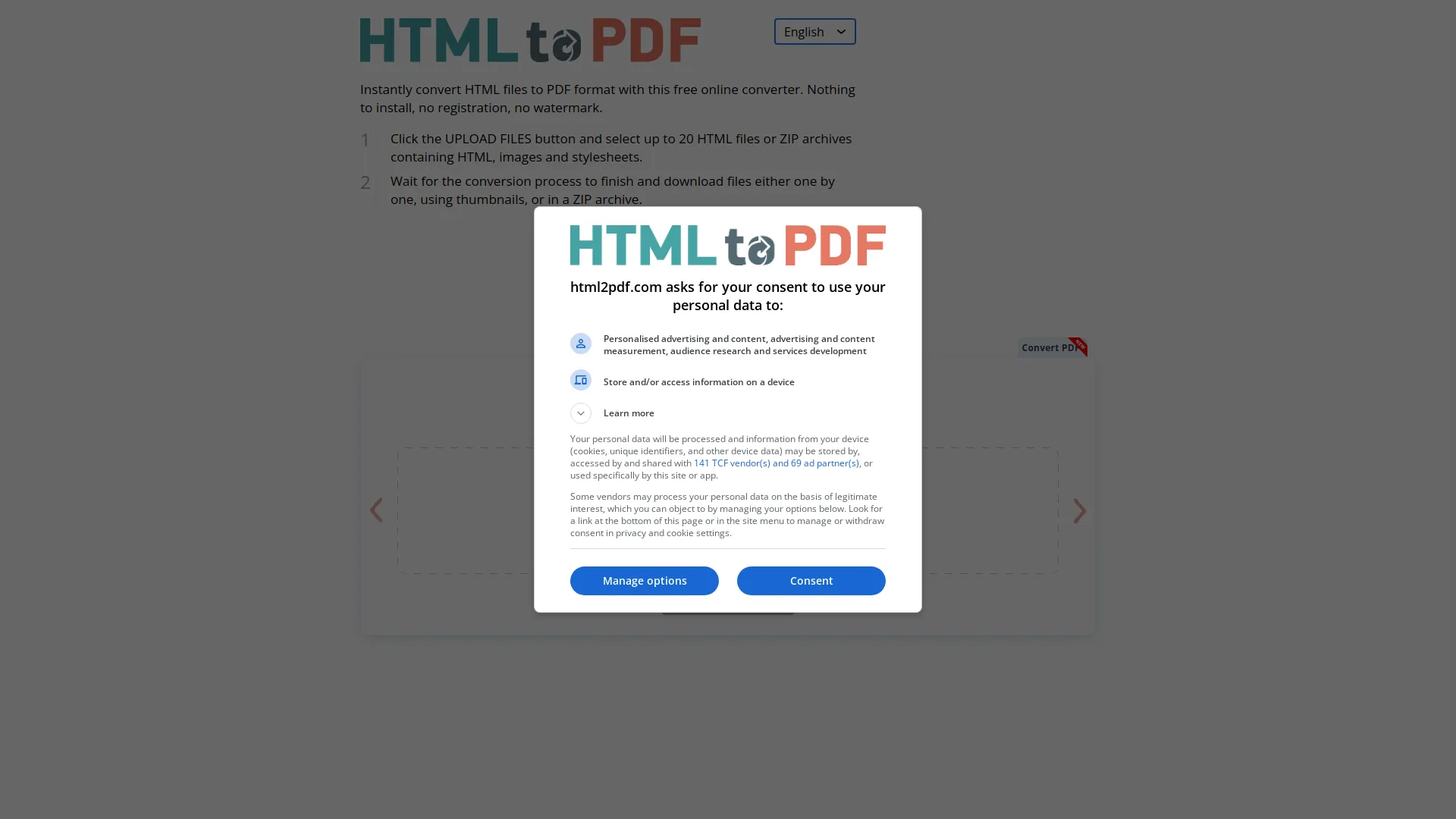
Online tools are a handy way to turn HTML into PDF without installing anything. Websites like PDFCrowd , html2pdf.com , and others let you put in a URL or upload HTML files to make PDFs.
How to Do It:
- Go to the online conversion tool's website.
- Type in the URL of the webpage or upload your HTML file.
- Change settings if you can (like page size, margins).
- Click "Convert" and download your PDF.
Good Stuff:
- No need to install anything.
- Often have extra features like converting lots of files at once.
- Can handle more complicated layouts than browser print options.
Not So Good Stuff:
- Might not be safe if you're uploading private stuff.
- Needs internet to work.
- Usually limited free use; might need to pay for using it a lot.
Libraries and APIs
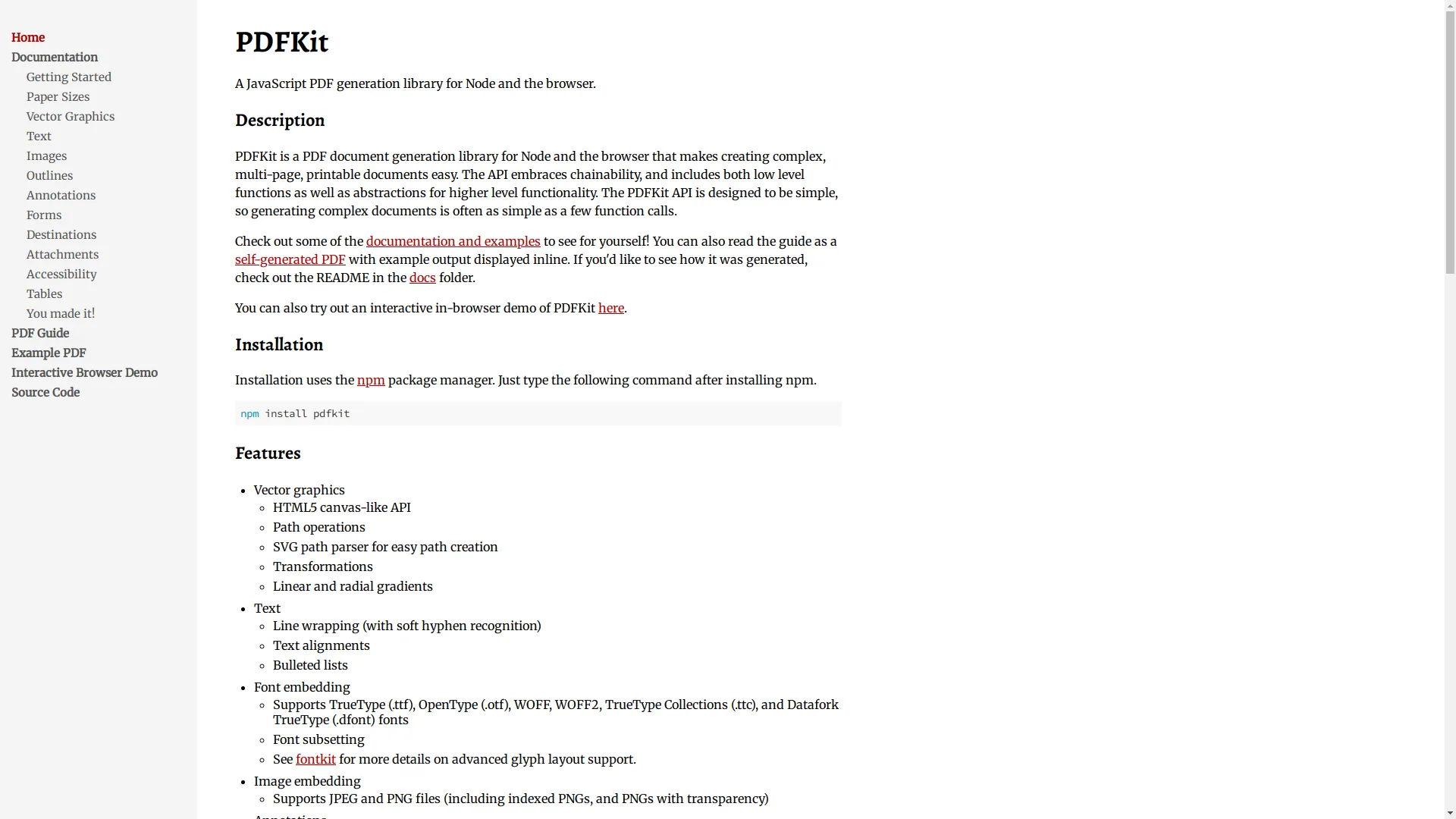
For developers who want to add HTML to PDF conversion to their apps, libraries and APIs like wkhtmltopdf , Puppeteer , and PDFKit are really useful.
Popular Tools:
- wkhtmltopdf: A command-line tool that uses the WebKit rendering engine.
- Puppeteer: A Node.js library that controls headless Chrome or Chromium.
- PDFKit: A JavaScript library for making PDFs in Node.js.
Good Stuff:
- Lots of options to customize and program.
- Can be added to automated workflows and applications.
- Works with complicated JavaScript and dynamic content.
Not So Good Stuff:
- Need to know how to code.
- Can take a while to set up and keep running.
- How well it works might depend on your server.
Desktop Software Options

Desktop programs like Adobe Acrobat , PDFCreator , and others have lots of features for turning HTML into PDF with lots of options to change things.
How to Do It:
- Install the desktop software you chose.
- Open the software and pick the HTML to PDF conversion option.
- Import your HTML file or type in the webpage URL.
- Change settings if you need to and start the conversion.
- Save your new PDF.
Good Stuff:
- Lots of powerful features and options to customize.
- Often can handle lots of files at once and automate things.
- Usually handles complicated layouts and interactive stuff well.
Not So Good Stuff:
- Might need to buy it or pay for a subscription.
- Can use up a lot of your computer's resources.
- Not as convenient for quick, one-time conversions compared to online tools.
What's New in HTML to PDF Conversion
The world of HTML to PDF conversion is always changing, keeping up with new web tech and what users want. Here are some of the latest trends:
AI and Machine Learning Making Things Better

Artificial Intelligence (AI) and Machine Learning (ML) are starting to be used in HTML to PDF conversion tools, making them more accurate and efficient.
Good Stuff:
- Smart Layout Changes: AI can smartly adjust layouts so they're easier to read in PDF format.
- Understanding Content: Machine learning can better figure out and keep dynamic content like animations and interactive bits.
- Making Things Better: AI can make PDFs the right size and quality based on what's in them and how they'll be used.
Mobile-Friendly Tools for Converting on the Go

With more people using phones and tablets, there's more demand for tools that can turn HTML into PDF while you're out and about.
Features:
- Easy to Use on Small Screens: Mobile-friendly designs make sure users can easily use conversion tools on smaller screens.
- Works with Cloud Storage: Many mobile conversion tools work with cloud storage services, making it easy to manage files.
- Fast Processing: Made to be quick for users who need to convert things fast without using up all their device's power.
Cloud-Based Solutions

Cloud computing has changed a lot of industries, including HTML to PDF conversion. Cloud-based conversion tools offer scalability, flexibility, and accessibility.
Benefits:
- Can Handle Lots of Work: Convert lots of files without needing resources on your own computer.
- Use It Anywhere: Access your conversion tools from anywhere with internet.
- Work Together: Easily share and manage converted PDFs within a team or company.
Must-Have Tools for HTML to PDF Conversion
Picking the right tool for HTML to PDF conversion can make a big difference. Here's a list of some of the top tools out there:
Popular Online Tools
| Tool | Description |
|---|---|
| PDFCrowd | Offers both online conversion and API access for developers. Known for being easy to use and giving reliable results. |
| html2pdf.com | Provides simple HTML to PDF conversion with options to customize. |
| Soda PDF | A big online PDF solution that includes HTML to PDF conversion among its features. |
Top Libraries and APIs
| Library/API | Description |
|---|---|
| wkhtmltopdf | A widely-used open-source tool that turns HTML into PDF using the WebKit rendering engine. It's known for handling complicated layouts well. |
| Puppeteer | A Node.js library that controls headless Chrome or Chromium, allowing for highly customizable and accurate HTML to PDF conversions. |
| PDFKit | A JavaScript library for making PDFs in Node.js applications, offering lots of customization options. |
Best Desktop Software
| Software | Description |
|---|---|
| Adobe Acrobat Pro DC | A powerhouse in the PDF world, offering advanced conversion features, editing tools, and ways to integrate with other systems. |
| PDFCreator | An open-source tool that lets users create PDFs from any printable document, including HTML. |
| CutePDF | Another popular choice for creating PDFs from various file types, known for being simple and effective. |
Tips for Effective HTML to PDF Conversion
Converting HTML to PDF isn't just about clicking a button; it's about making sure the output meets your needs and keeps the original content looking good. Here are some tips to get effective conversions:
Getting Your HTML Content Ready for Conversion
Before converting, it's important to optimize your HTML content to make sure the resulting PDF is clean and well-formatted.
Tips:
- Keep Layouts Simple: Complicated layouts with lots of CSS or JavaScript might not look good in PDFs. Simplify where you can.
- Use Inline CSS: Inline styles can help keep the right styling in the PDF.
- Avoid Absolute Positioning: Stick to relative positioning to make sure elements are placed correctly in the PDF.
Dealing with Tricky Layouts
Webpages with complicated layouts, like multi-column designs, interactive elements, or dynamic content, can be challenging to convert.
Solutions:
- Use CSS Breaks: Use CSS page breaks to control where content flows in the PDF.
- Try Different Tools: Some tools handle complicated layouts better than others. Experiment to find the best one.
- Manual Tweaks: Sometimes, you might need to manually adjust the HTML or CSS to get the result you want.
Making Sure It's Accessible and SEO-Friendly

While PDFs aren't really designed for SEO, making sure your converted PDFs are accessible can make them better for users and meet compliance requirements.
Best Practices:
- Use Easy-to-Read Fonts: Use readable fonts and proper font sizes.
- Add Alt Text for Images: Include descriptive alt text for images to help screen readers.
- Logical Structure: Use headings, subheadings, and proper tagging to create a clear structure within the PDF.
Tech Improvements
Technology is always improving the HTML to PDF conversion process, making it more efficient and accurate.
Better Rendering Engines

Modern rendering engines used in conversion tools—like WebKit or Blink—are better at accurately interpreting HTML, CSS, and JavaScript, making sure the PDF looks a lot like the webpage.
Benefits:
- Better CSS Support: Enhanced support for modern CSS features like Flexbox and Grid layouts.
- JavaScript Execution: Improved ability to run and show dynamic content generated by JavaScript.
- High-Quality Outputs: More accurate representations of complex designs and interactive elements.
Support for Modern Web Stuff

With the web always changing, conversion tools have to keep up with new technologies and standards.
Examples:
- Responsive Design: Making sure that responsive designs adapt correctly in the PDF format.
- Web Fonts: Properly embedding custom web fonts to keep design consistency.
- Multimedia Elements: Better handling of embedded videos, audio files, and other multimedia content.
Keeping Up with Current Trends
Staying in line with current web and user trends ensures that your HTML to PDF conversion stays relevant and efficient.
Thinking About Responsive Design
As websites increasingly use responsive designs, making sure these layouts translate well into PDFs is crucial.
Strategies:
- Media Queries: Use media queries to adjust styles specifically for PDF rendering.
- Flexible Layouts: Design layouts that can adapt smoothly when converted to a static format like PDF.
- Testing on Different Devices: Make sure the PDF looks good no matter what device it's viewed on.
Adding Interactive Bits
While PDFs are static, adding interactive elements can make them better for users.
Approaches:
- Hyperlinks: Include clickable links for easy navigation within the PDF or to external resources.
- Forms: Add fillable forms to collect information directly within the PDF.
- Multimedia: Embed videos or audio clips where relevant, making sure they're supported by the PDF reader.
Building Good Networks
Integrating HTML to PDF conversion tools with your existing workflows and making sure collaboration is smooth can really boost productivity.
Fitting Conversion Tools into Your Workflow
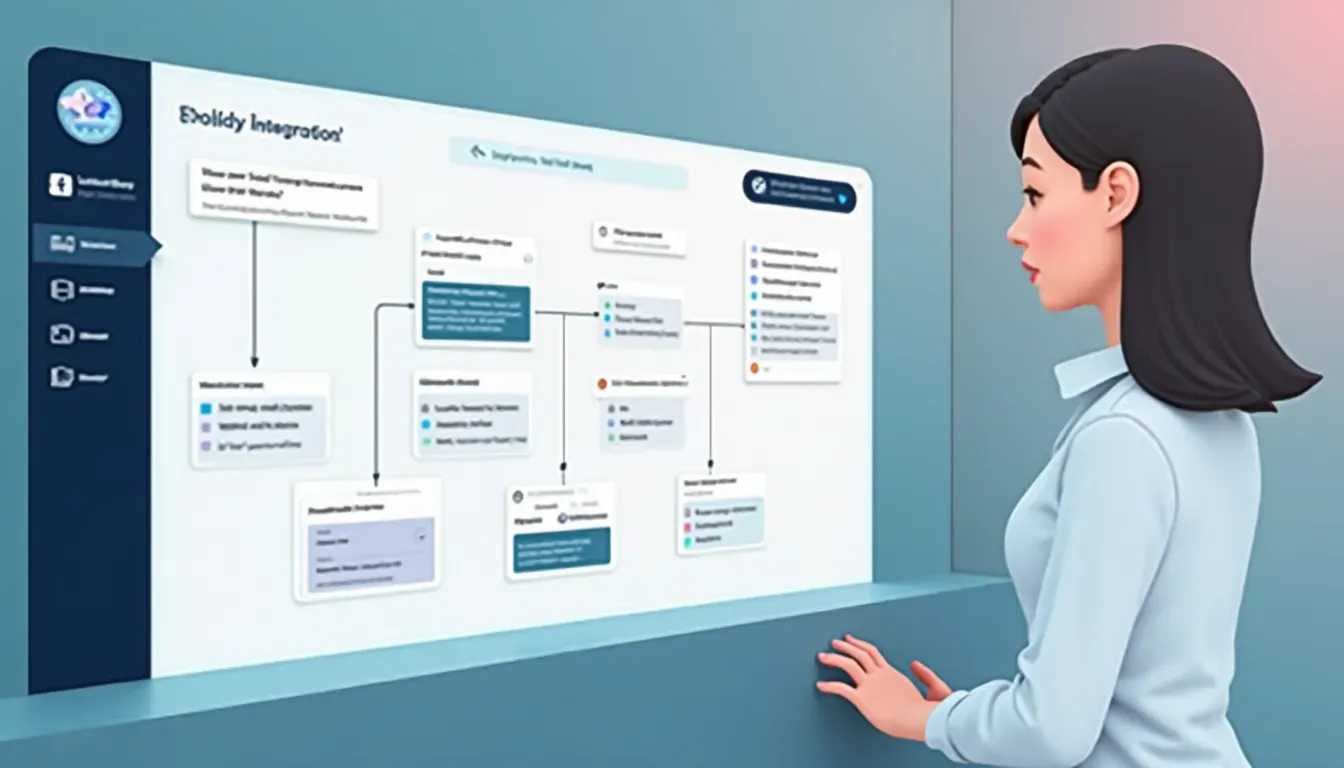
Seamless integration ensures that conversion processes are efficient and don't disrupt your current operations.
Tips:
- API Integration: Use APIs to embed conversion capabilities directly into your applications or services.
- Automation: Automate repetitive conversion tasks to save time and reduce errors.
- Compatibility Checks: Make sure that the conversion tools work with your existing software stack.
Keeping Data Safe and Private

When converting HTML to PDF, especially with sensitive or proprietary information, keeping data secure is super important.
Best Practices:
- Secure Connections: Use tools that support HTTPS for secure data transmission.
- Data Encryption: Make sure that PDFs are encrypted, especially if they contain confidential information.
- Privacy Policies: Choose reputable tools that follow strict privacy policies to protect your data.
Strategies That Work
Achieving high-quality HTML to PDF conversions consistently requires strategic planning and execution. Here are some strategies to ensure success:
Automating the Conversion Process
Automation can streamline your workflow, making conversions faster and reducing the risk of human error.
How to Do It:
- Scheduled Conversions: Set up automated schedules to convert HTML to PDF at regular intervals.
- Batch Processing: Use tools that support batch conversions to handle multiple files at once.
- Integration with CI/CD Pipelines: For developers, integrate conversion tools into continuous integration and deployment pipelines to automate documentation updates.
Keeping an Eye on Quality

Consistent monitoring and quality checks ensure that your PDFs meet the desired standards.
Steps to Follow:
- Regular Testing: Periodically test the conversion process with different types of HTML content.
- Feedback Loops: Gather feedback from users or stakeholders to identify and address issues.
- Update Tools: Keep your conversion tools updated to benefit from the latest improvements and bug fixes.
User Experience and How Well It Performs
In today's fast-paced digital world, user experience and performance metrics are critical. Making sure that your HTML to PDF conversions are both high-quality and efficient can significantly impact your productivity and user satisfaction.
Speed and Efficiency

Time is important, and how fast HTML is converted to PDF can make a big difference, especially in professional settings.
Key Things to Consider:
- Processing Time: Choose tools that offer quick conversion times without messing up quality.
- Resource Management: Make sure that the conversion process doesn't use up all your system resources, especially when handling big or complex files.
- Scalability: Go for solutions that can grow with your needs, handling larger volumes as required.
How Accurate and True the Conversion Is

Accuracy ensures that the PDF really represents the original HTML content, keeping visual and functional integrity.
Factors to Ensure:
- Layout Preservation: The layout of the webpage should be mirrored accurately in the PDF.
- Content Integrity: All text, images, and multimedia should be precisely represented.
- Functional Elements: Interactive elements like forms and links should still work in the PDF.
Wrapping It Up
Getting into HTML to PDF conversion opens up a world full of possibilities and challenges. From simple browser-based conversions to fancy AI-driven tools, the methods available today cater to all sorts of needs and preferences. By understanding the various conversion processes, using the latest trends and technologies, and implementing effective strategies, you can make sure your HTML to PDF conversions are not only efficient but also maintain the highest standards of quality and professionalism.
But here's the thing: the world of HTML to PDF conversion is always changing. As web technologies advance and what users expect shifts, staying updated with the latest tools and best practices is essential. So, what are you waiting for? Dive into the tons of conversion tools out there, try out different methods, and find the perfect fit for what you need. Whether you're a developer, marketer, teacher, or just someone looking to save a webpage for later, mastering HTML to PDF conversion will definitely make you more productive and improve your digital interactions.

Ready to turn your web content into awesome PDFs? Start exploring the tools and strategies we talked about in this guide, and watch your workflow become smoother, your documentation more professional, and your sharing of information easier. Embrace the future of document conversion today, and let your HTML shine in PDF form!