Table of Contents
Introduction
Hey there! Ever wanted to jazz up your website with some cool videos but got stuck with all the technical stuff? Don't worry, you're not the only one. Adding YouTube videos to your site can be a bit tricky, especially if you want them to look just right. But here's the good news - we're gonna walk you through how to embed and crop YouTube videos using HTML frames. Whether you're a pro coder or just starting out, by the time you finish reading this, you'll be adding videos to your site like a boss. So grab a snack, get comfy, and let's get started!
Understanding YouTube Embedding
Why Embed YouTube Videos?
Think about it - you've made an awesome video tutorial, or maybe a fun product demo. You want people visiting your site to see it without having to click away. That's where embedding comes in handy. It keeps folks on your site, makes things more interesting, and can even help your site show up better in search results.
Basic Embed Code Structure
Okay, let's get down to business. Embedding a YouTube video is actually pretty simple. YouTube gives you a code that you can just copy and paste into your HTML. Here's what it looks like:
<iframe width="560" height="315" src="https://www.youtube.com/embed/VIDEO_ID"
frameborder="0" allow="accelerometer; autoplay; clipboard-write; encrypted-media;
gyroscope; picture-in-picture" allowfullscreen></iframe>
Just swap out
VIDEO_ID
with your video's unique code, and boom - you've got a video player right on your page.
Embedding YouTube Videos with HTML Frames
Using <iframe> for Embedding
The
<iframe>
tag is like the superhero of YouTube embedding. It basically creates a little window in your webpage that shows content from somewhere else - in this case, YouTube. Here's how you use it:
<iframe width="560" height="315" src="https://www.youtube.com/embed/VIDEO_ID"
frameborder="0" allow="accelerometer; autoplay; encrypted-media; gyroscope;
picture-in-picture" allowfullscreen></iframe>
This bit of code will plop your YouTube video right into your page, so people can watch it without going anywhere else.
Advantages of Using <iframe>
- It's super easy to use - just a few lines of code and you're done.
- You can make it look good on phones, tablets, and computers with some CSS magic.
- It keeps the video stuff separate from your website stuff, so things don't get messy.
- You can tweak how the video player looks and acts.
Cropping YouTube Videos within a Frame
Why Crop YouTube Videos?
You might be thinking, "Why would I want to crop a video?" Well, there are a few good reasons:
- Sometimes you just want to show the important bits of a video.
- It can make your website look nicer if all your videos are the same size.
- You can make your page look fancier by controlling exactly how much of the video shows.
Methods to Crop Videos
Now, YouTube doesn't let you crop videos directly, but we can use some CSS tricks to make it happen. Here are a couple ways to do it:
1. Using CSS
overflow: hidden
This is like putting your video in a box and only showing part of it. Here's how:
<div class="video-container">
  <iframe src="https://www.youtube.com/embed/VIDEO_ID" frameborder="0" allowfullscreen></iframe>
</div>
.video-container {
  width: 300px; /* How wide you want it */
  height: 200px; /* How tall you want it */
  overflow: hidden;
  position: relative;
}

.video-container iframe {
  position: absolute;
  top: -50px; /* Move it up or down */
  left: -100px; /* Move it left or right */
  width: 560px; /* Original width */
  height: 315px; /* Original height */
}
2. Using CSS
transform
Another way is to use CSS
transform
to make the video bigger or smaller and move it around:
.video-container {
  width: 300px;
  height: 200px;
  overflow: hidden;
  position: relative;
}

.video-container iframe {
  transform: scale(1.5);
  margin-left: -50px;
  margin-top: -30px;
}
This lets you play around with the size and position of the video more easily.
Advanced Techniques and Best Practices
Responsive Embedding
These days, people look at websites on all sorts of devices. Here's how to make your videos look good on all of them:
<div class="responsive-container">
  <iframe src="https://www.youtube.com/embed/VIDEO_ID" frameborder="0" allowfullscreen></iframe>
</div>
.responsive-container {
  position: relative;
  padding-bottom: 56.25%; /* This makes it widescreen */
  height: 0;
  overflow: hidden;
  max-width: 100%;
}

.responsive-container iframe {
  position: absolute;
  top: 0;
  left: 0;
  width: 100%;
  height: 100%;
}
This makes your video resize nicely no matter what screen it's on.
Customizing Player Controls
You can change how the YouTube player looks and acts by adding some extra bits to the video link:
<iframe src="https://www.youtube.com/embed/VIDEO_ID?autoplay=1&controls=0&rel=0"
frameborder="0" allowfullscreen></iframe>
-
autoplay=1makes the video start playing right away. -
controls=0hides the play and pause buttons. -
rel=0stops other videos from showing up at the end.
SEO Considerations
Putting videos on your site can help it show up better in search results. Here are some tips:
- Give your videos clear titles and descriptions that match what's on your page.
- Make your videos load only when someone scrolls to them to keep your page fast.
- Add text versions of your videos for people who can't watch them.
Tools and Resources
IMG2HTML: Transform Images to Code with AI
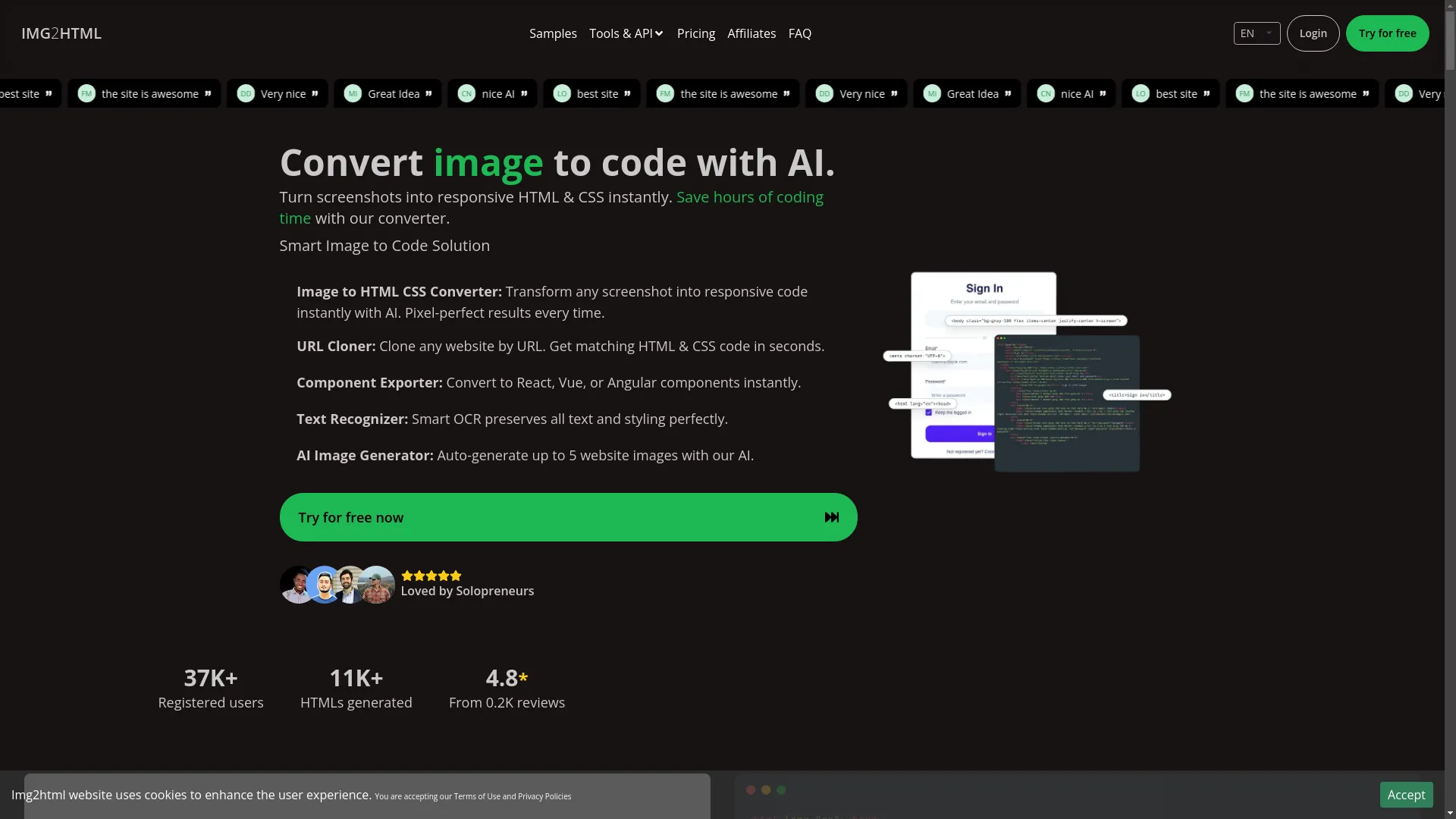
While you're working on your site, check out IMG2HTML . It's pretty cool - it can turn pictures into HTML & CSS code super fast using AI. Whether you're a coder looking to save time or a designer who doesn't want to spend hours coding, IMG2HTML can help.
What IMG2HTML Can Do:
- Turn images into web code that looks just like the picture.
- Copy entire websites just from their web address.
- Make React, Vue, or Angular parts from designs.
- Create website pictures automatically to make your design process easier.
Other Essential Tools
- Responsive Design Frameworks : Stuff like Bootstrap or Tailwind CSS can help make your videos look good on phones and computers.
- CSS Grid and Flexbox : Learning these can help you arrange your videos and other stuff on your page better.
- Lazy Loading Libraries : These make your site faster by only loading videos when people can see them.
Enhancing User Experience and Performance
Optimizing Load Times
Nobody likes waiting for stuff to load online. Here's how to keep your videos loading fast:
- Lazy Loading : Only load videos when people scroll to them.
- Efficient Embedding : Use the simplest embed codes you can.
- Content Delivery Networks (CDNs) : These help deliver your content faster based on where people are.
Ensuring Accessibility
Making sure everyone can enjoy your videos is important:
- Captions and Subtitles : Add these so people can read along.
- Keyboard Navigation : Make sure people can use your video controls with just a keyboard.
- Descriptive Titles : Use clear titles for your videos to help people using screen readers.
Conclusion
And there you have it - a complete guide to putting YouTube videos on your website and making them look just right. By using these tricks, you can make your website more fun to use, keep it looking good, and keep people interested with great video content. Remember, the best way to get good at this is to try different things and see what works best for you. And if you ever get stuck, tools like IMG2HTML are there to help turn your ideas into real web code super fast.
So what are you waiting for? Start adding those YouTube videos to your site and watch it come to life!
Frequently Asked Questions (FAQ)
- 1. Can I put YouTube videos on my site without using <iframe>?
-
You can, but
<iframe>is usually the easiest and works best. -
2. How do I find the
VIDEO_IDfor my YouTube video? -
It's the jumble of letters and numbers at the end of the YouTube link. For example, in
https://www.youtube.com/watch?v=dQw4w9WgXcQ, theVIDEO_IDisdQw4w9WgXcQ. - 3. Can I make a YouTube video start playing automatically when someone opens my page?
-
Yep! Add
?autoplay=1to the video link in the<iframe>. But be careful - some people find auto-playing videos annoying. - 4. How do I make sure my video looks good on phones and computers?
- Use the responsive container method we talked about earlier. It'll make your video resize to fit different screens.
- 5. Can I get rid of the YouTube logo on my embedded video?
- Not completely - that's against YouTube's rules. But you can hide some stuff to make it blend in better with your site.
- 6. What's the best way to put lots of YouTube videos on one page?
-
- Make them load only when people scroll to them.
- Make them all the same size.
- Arrange them neatly using grids or flexbox.
- 7. What if a video is too big for my design?
- Use the CSS cropping methods we talked about, or just change the size of the iframe. Just make sure it doesn't look squished.
- 8. Do embedded YouTube videos help my website show up better in search results?
- They can! They keep people on your site longer, which search engines like. Just make sure the videos fit with what your page is about.
- 9. Is it safe to put YouTube videos on my site?
- Generally, yes. Just make sure you're using HTTPS to keep things secure.
- 10. Are there other places I can get videos from besides YouTube?
- Definitely! Check out Vimeo, Dailymotion, or even hosting videos yourself. Each has its own good points.