
Ready to get your website online? Follow this comprehensive guide to upload your HTML site to Porkbun with ease.
Intro
So, you've built this awesome HTML website and now you're thinking, "Where the heck do I put this thing?" Well, let me introduce you to Porkbun. It's this cool place where you can get domains cheap and host your site without breaking a sweat. Whether you're a coding wizard or just starting out, getting your site up on Porkbun is pretty straightforward. Ready to jump in? Let's do this!
Why Porkbun?
Think of Porkbun as that one-stop-shop where everything just works. Cheap domains? Check. Easy DNS stuff? Yup. Solid hosting? You bet. But what really makes Porkbun stand out is how everything just fits together nicely. You don't have to juggle a bunch of different services - it's all right there.
Hosting Your Own HTML Site Made Easy
When you host your own HTML site, you're the boss. You decide how it looks, what it does, and how it grows. No templates holding you back - just pure creativity. But don't worry, Porkbun makes it easy even if you're not a tech genius.
Getting Started with Porkbun
Grabbing Your Domain
- 1. Head over to Porkbun's website and sign up if you haven't already.
- 2. Use the search bar to find a domain name that fits your vibe. Got a favorite? It's probably available!
- 3. Once you find the perfect domain, go ahead and buy it. Porkbun's prices are pretty sweet, so your wallet won't hate you.
Finding Your Way Around Porkbun
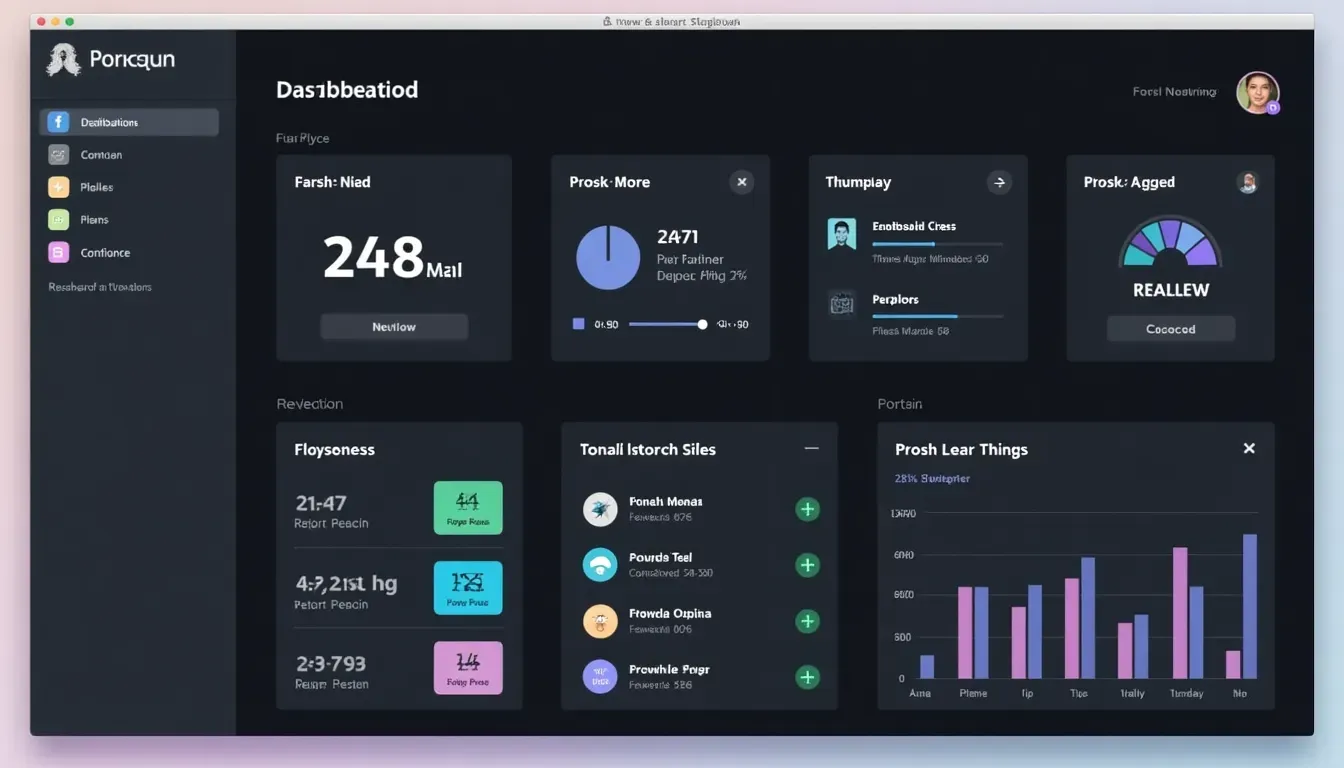
After you sign up, you'll see your dashboard. Here's the lowdown:
- Domain Management: This is where all your domains live. Got just one? That's cool too!
- DNS Settings: This is where the magic happens. Getting this right means people can actually find your site.
- Hosting Options: Whether you want simple static hosting or something fancier, Porkbun's got you covered.
Getting Your HTML Site Ready to Upload
Organizing Your Stuff
Think of your website like a well-organized closet. Everything has its place, making it easy to find and manage.
- Folder Structure: Keep your HTML, CSS, JavaScript, images, and other stuff neatly organized. Here's a simple way to do it:
/my-website
├── index.html
├── about.html
├── /css
│   └── styles.css
├── /js
│   └── scripts.js
└── /images
└── logo.png- Relative Paths: Use these when linking your files. It'll save you headaches when moving stuff around.
- Shrink Those Images: Big images can slow down your site. Use tools like TinyPNG to make them smaller without losing quality.

Testing Locally First
Ever heard "measure twice, cut once"? Same idea here. Testing your site locally helps catch problems before anyone else sees them.
- Set Up a Local Server: Tools like Live Server for VS Code can help you see your site locally.
- Check Different Browsers: Make sure your site looks good in Chrome, Firefox, Safari, etc.
- Test on Different Devices: Your site should look good on phones, tablets, and computers.
Buying Static Hosting on Porkbun
Picking the Right Plan
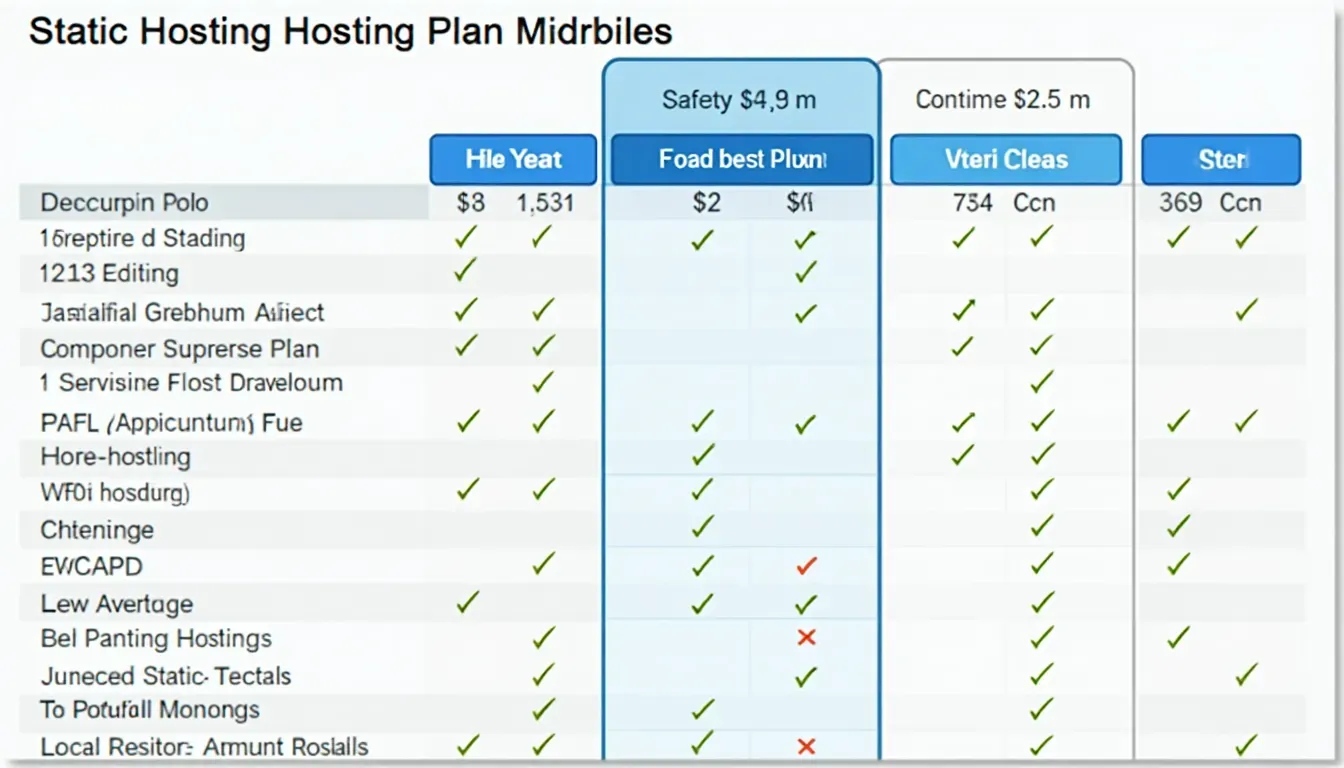
Porkbun has different hosting options, but for a simple HTML site, static hosting is probably your best bet. It's perfect for sites that don't need fancy server stuff.
-
Why Static Hosting is Cool:
- Fast: Static sites load quick because they don't need server processing.
- Secure: Fewer moving parts mean fewer ways for bad guys to get in.
- Cheap: Usually costs less than other types of hosting.
- Choose Your Plan: Porkbun has flexible options. Whether you're hosting a personal blog or a pro portfolio, there's a plan that'll work for you.
Understanding How You'll Pay
Let's talk money for a sec.
- Monthly or Yearly: Choose based on what works for your budget. Yearly often comes with discounts.
- Try Before You Buy: Not sure? Porkbun offers a 15-day free trial. Give it a shot without committing.
Uploading Your Site to Porkbun
Time to get your files onto Porkbun's servers. You've got a few ways to do this.
Using FTP to Transfer Files
FTP is like a bridge between your computer and the hosting server.
- Pick an FTP Program: FileZilla , Cyberduck , and WinSCP are popular choices.
- Get Your FTP Login Info: Once you buy hosting, Porkbun will give you the details you need to log in.
-
Connect and Upload:
Open your FTP program, put in your login info, and connect. Then just drag and drop your website files into the right folder (usually called
public_html).
I remember my first time using FileZilla - it felt like trying to fly a spaceship! But once I got the hang of it, uploading my site was a breeze.
Uploading with Zip Files
If FTP seems like too much, Porkbun lets you upload zip files instead.
- Zip Your Website: Put all your website files into a zip file.
- Go to Your Hosting Dashboard: Find the static hosting section on Porkbun.
- Upload the Zip: Click the "Upload Zip File" button and choose your zipped website. Porkbun will unzip it and put everything where it needs to go.
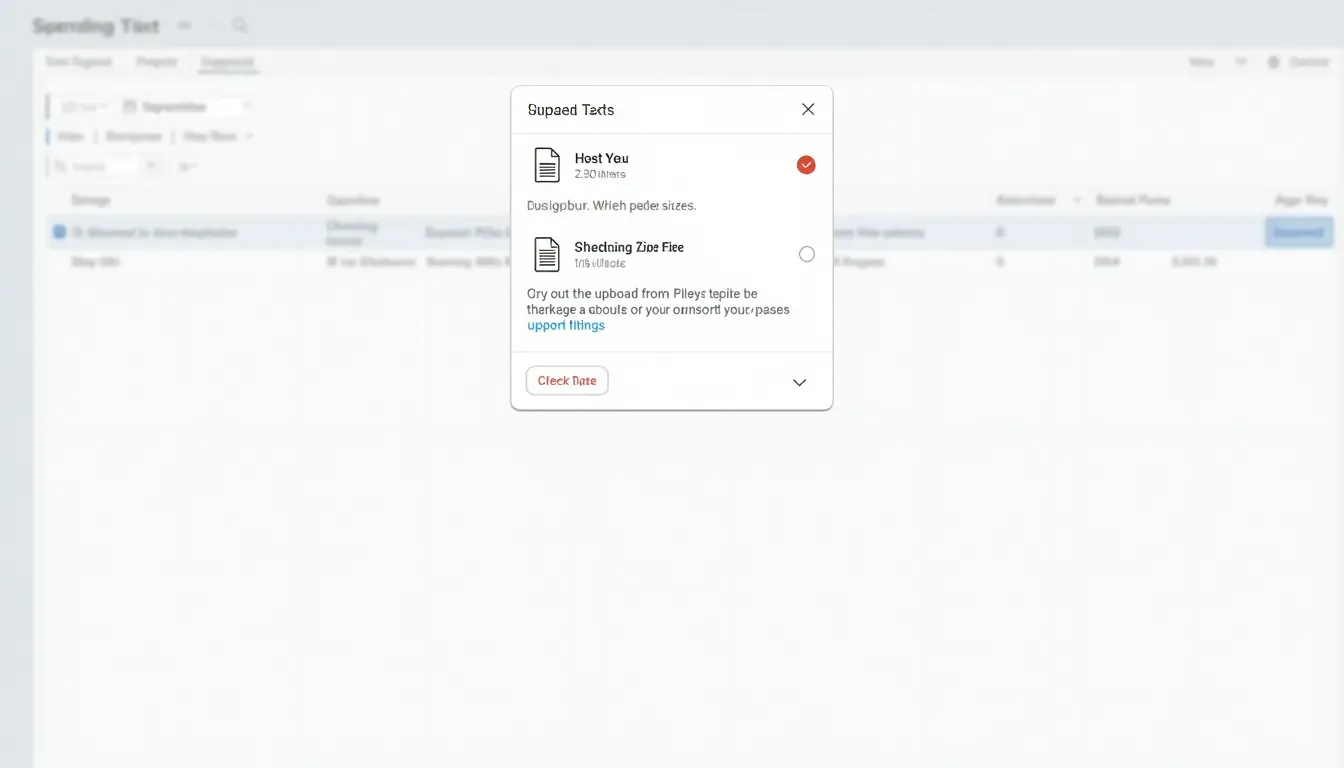
Who doesn't love a shortcut? This method is great if you want to keep things simple.
Using Porkbun's Built-in Editor
For quick changes or small sites, Porkbun's editor is super handy.
- Find the File Manager: Look for it in your static hosting dashboard.
- Create or Edit Files: You can make new HTML, CSS, or JavaScript files right there, or change existing ones.
- Save and Check: After making changes, save your files and refresh your website to see what's new.
Setting Up DNS Records
DNS setup is like giving your website an address so people can find it.
What's an A Record?
A records are like GPS coordinates for your website. They tell your domain name where to find your website's files.
- What They Do: They point your domain to the actual server where your website lives.
- Why They Matter: Without the right A records, your domain won't know where to find your website, and people will get errors when they try to visit.
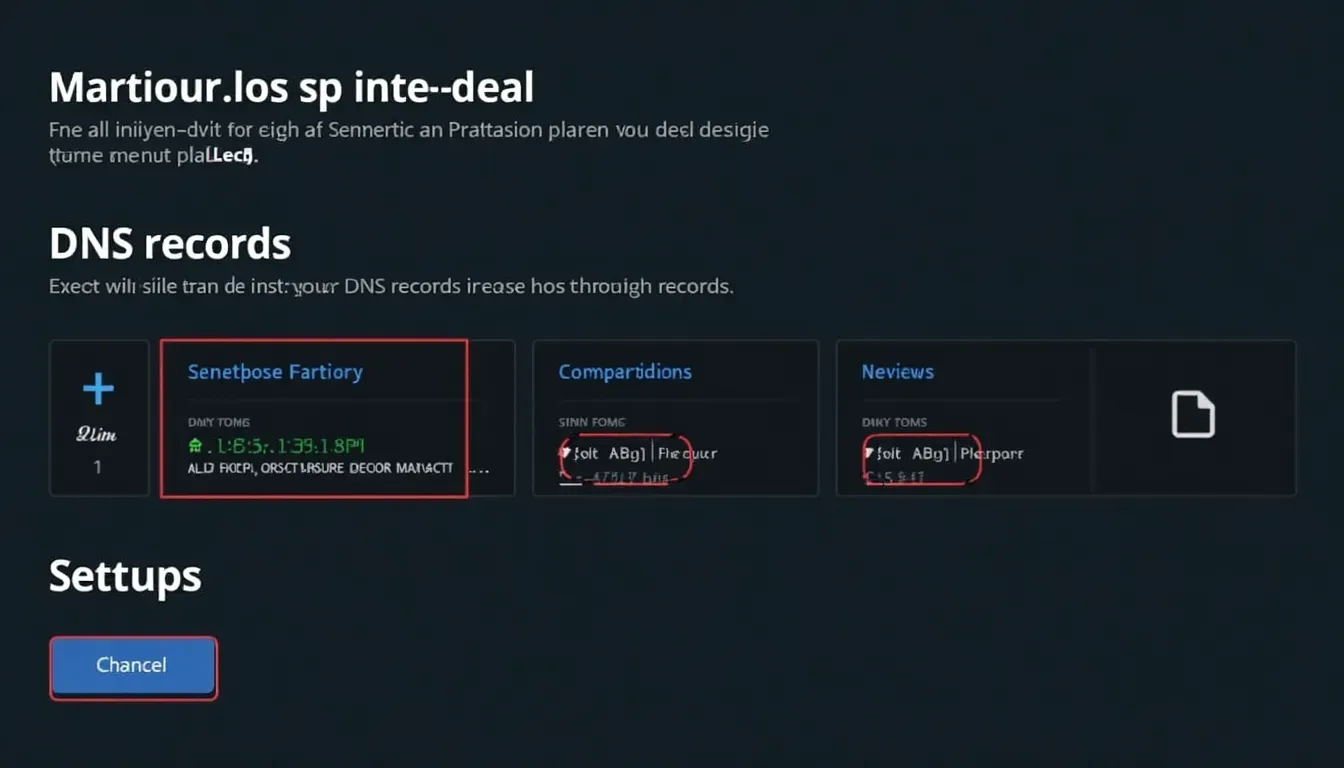
Step-by-Step DNS Setup
- Log into Porkbun: Go to Porkbun's website and sign in.
- Find Domain Management: Click "ACCOUNT" in the top-right and pick "Domain Management."
- Pick Your Domain: Find the domain you want to set up and click the little arrow next to it.
-
Set Up DNS Records:
- Get Rid of Old A Records: Scroll down, find any old A records, and delete them by clicking the trash can icon.
-
Add New A Records:
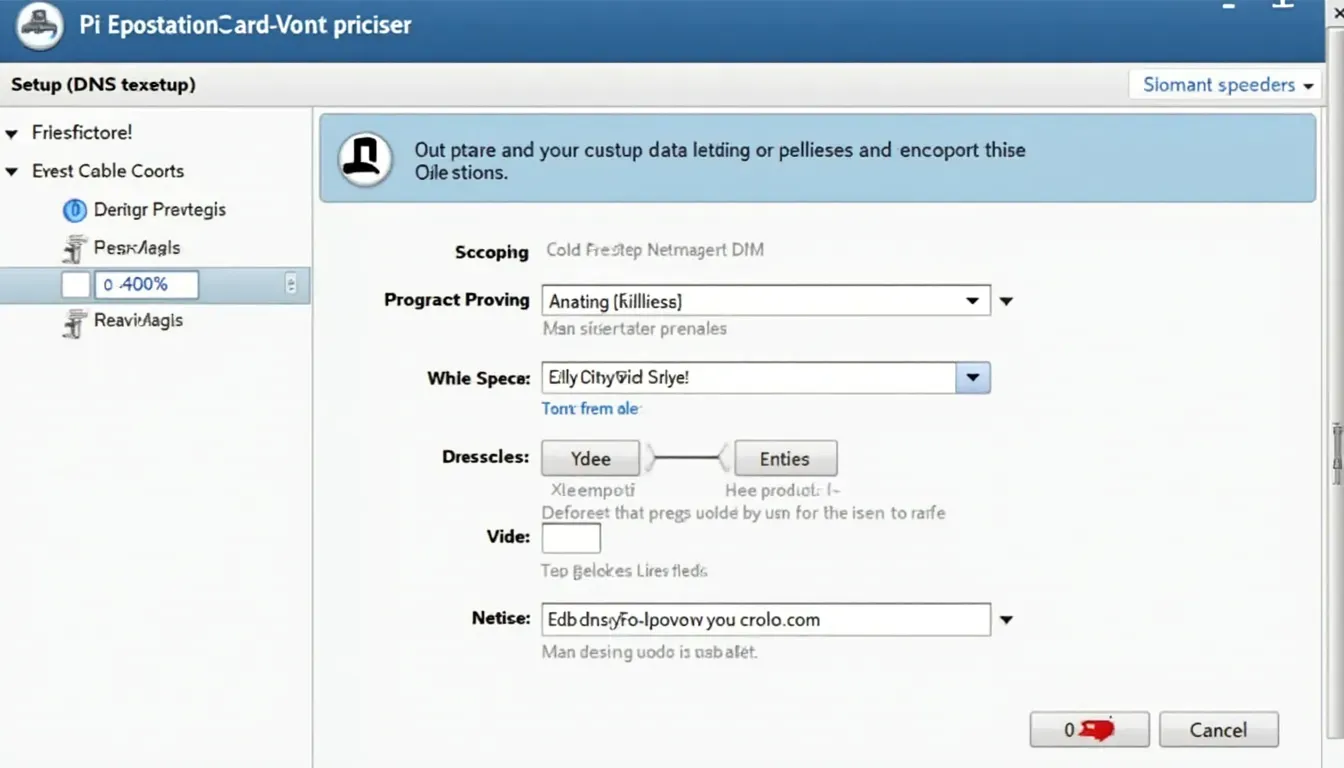
Click "Add Record" and choose "A - Address Record."
-
For "Host," put
@for the main domain orwwwfor the www version. - For "Answer," put the IP address Porkbun gave you for your static hosting.
-
For "Host," put
- Save It: Click the green "Add" button to save your new A record.
- Wait a Bit: DNS changes can take anywhere from a few minutes to a couple of days to work everywhere. Patience is key!
Think of DNS changes like mailing a letter around the world. It takes time for all the mail carriers (DNS servers) to get the new address.
Moving Your Site via cPanel
If you're moving from another host, Porkbun's cPanel support makes it pretty easy.
Getting Your Stuff Out of Your Old Host
- Log into Your Old cPanel: Sign in to your old hosting account's cPanel.
-
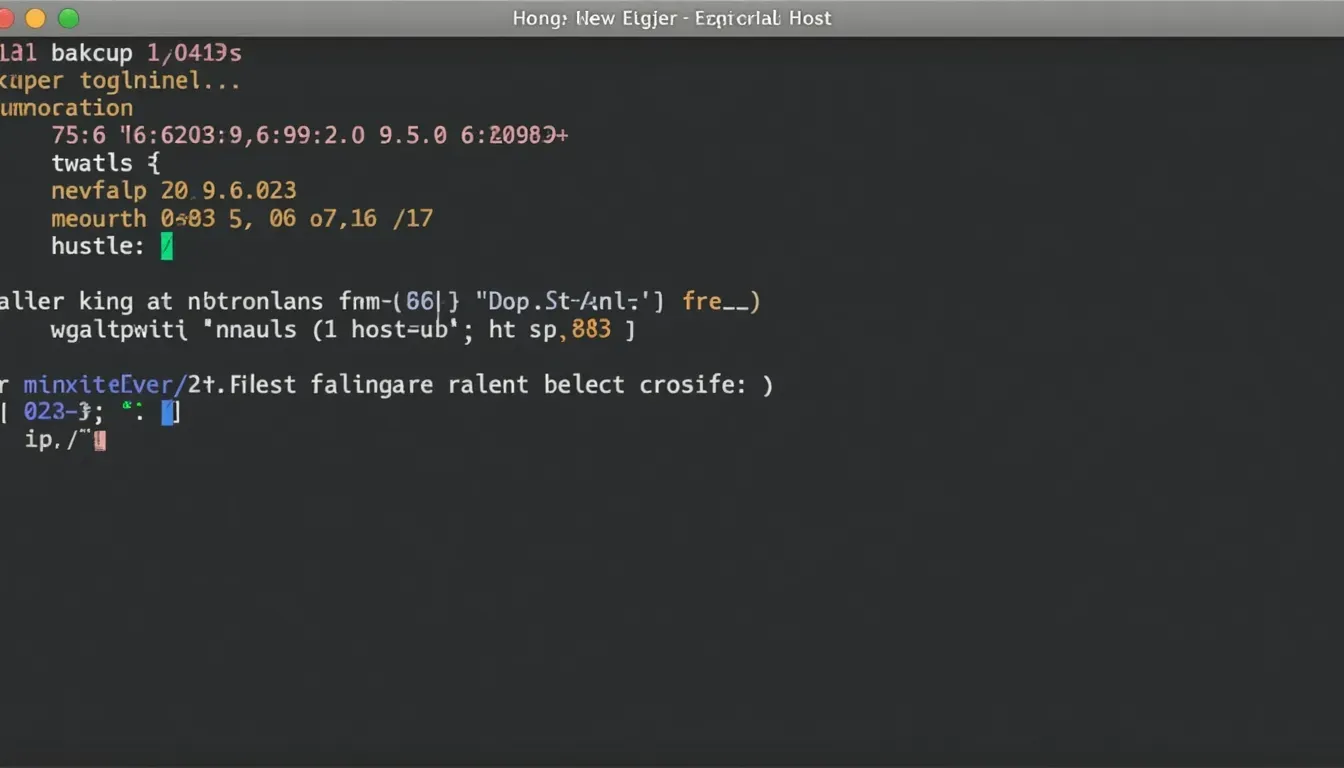
Back Up Your Site:
- Find the "Backup Wizard."
- Choose to download a full backup of your site. This usually includes all your files and databases.
-
Download the Backup:
Save the
.tar.gzbackup files to your computer.
Bringing It Into Porkbun's cPanel
- Get into Porkbun's cPanel: Log into your Porkbun account and find the cPanel section.
-
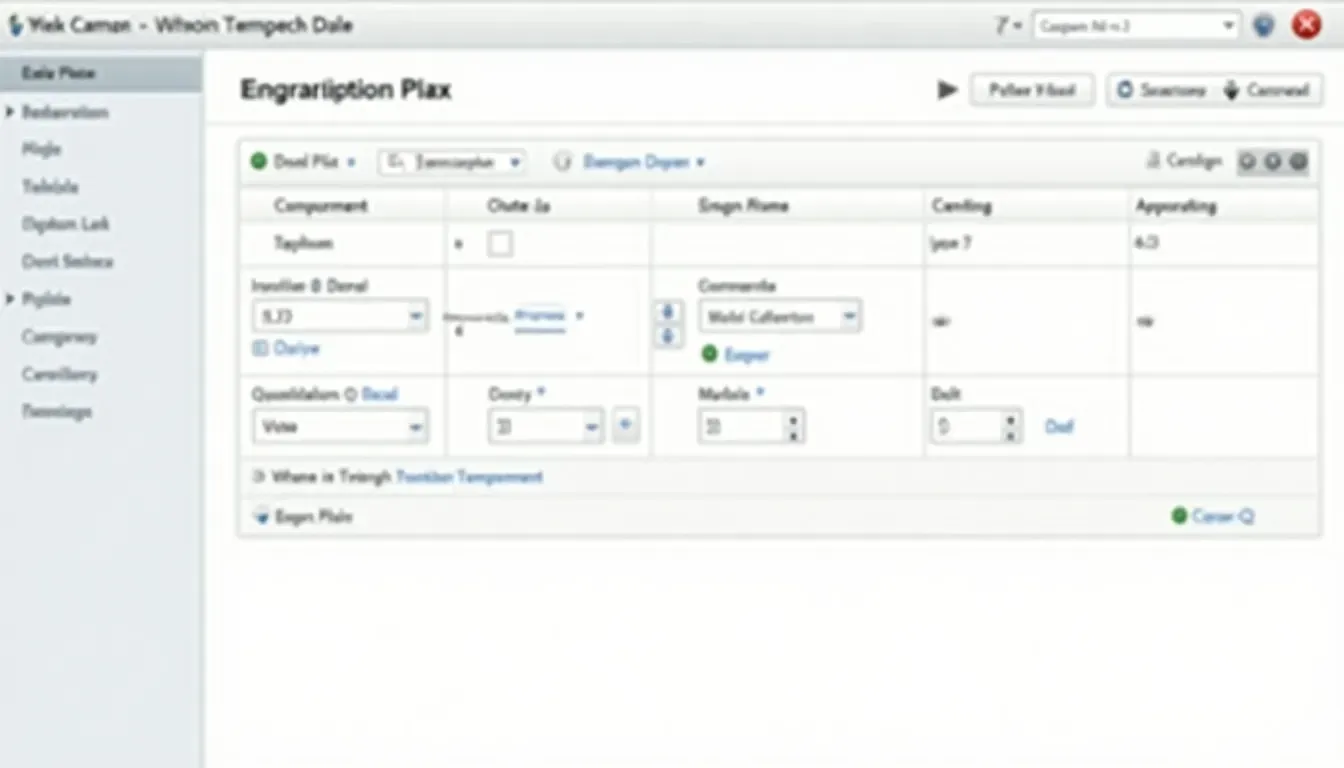
Use the Backup Wizard:
- Click "Backup Wizard" and choose "Restore."
-
Upload the
.tar.gzfile with your website's home directory. -
If your site uses a database, upload the
.sql.gzfile too.
- Finish Up: Follow the on-screen steps to complete the import.
- Check Your Site: Once it's done, visit your domain to make sure everything looks right.
Moving to Porkbun felt like moving to a new house. There's the stress of unpacking (or uploading files), but the new place is worth it!
Making Your Site Run Smoothly
A great-looking website is only as good as how well it works. Let's make sure your site is fast and user-friendly.
Speeding Things Up
Nobody likes waiting for a slow website, right?
- Fewer HTTP Requests: Try to reduce the number of files your site needs to load. Combine CSS and JavaScript files if you can.
- Use Browser Caching: This lets browsers save some of your site's files, making repeat visits faster.
- Try a CDN: Services like Cloudflare can spread your content around the world, making your site load faster for everyone.
- Optimize Images: Like we mentioned before, use tools to make your images smaller without making them look bad.

SEO Basics
Great content deserves to be seen. Here's how to make your website more SEO-friendly.
- Meta Tags: Make sure each page has its own unique title and description.
-
Use the Right HTML:
Use proper HTML tags (like
<header>,<footer>,<article>) to help search engines understand your content. - Mobile-Friendly Design: Make sure your website looks good on phones and tablets. Google likes that.
- Fast Loading: Remember those speed tips? They help with SEO too.

Ever wonder why your friend's website shows up higher on Google? SEO is one of the secrets!
Adding SSL to Keep Things Secure
Security is super important. Let's make sure your website is safe and trustworthy.
Setting Up Let's Encrypt SSL
SSL certificates keep data safe between your website and its visitors. It's that little padlock icon next to your URL.
- Go to Your Hosting Dashboard: Log into your Porkbun hosting account.
- Find SSL Settings: Look for the SSL/TLS section.
- Turn On Let's Encrypt: There should be an option to activate a free Let's Encrypt SSL certificate. Turn that on.
-
Check It's Working:
Visit your website using
https://and look for the padlock icon.
Keeping SSL Up-to-Date Automatically
- Turn On Auto-Renewal: Make sure the auto-renew option is on in your hosting dashboard.
- Check Now and Then: Every once in a while, make sure your SSL certificate is still active and up-to-date.
Think of SSL as your website's bouncer - keeping the bad guys out and the good vibes flowing!
Fixing Common Problems
Even the best plans can hit a snag. Let's talk about some common issues.
Dealing with Slow DNS Changes
Waiting for DNS to update can be frustrating. Here's what to do:
- Be Patient: Changes can take up to 48 hours. Give it some time.
- Clear Your Browser's Cache: Sometimes your browser holds onto old info. Clearing the cache can help.
- Use DNS Tools: Sites like WhatsMyDNS.net can help you see how your DNS changes are spreading.
Think of DNS changes like sending out party invites. It takes time for everyone to get the message!
Common Upload Hiccups
Uploads can sometimes go wrong. Here's how to fix them:
- Double-Check FTP Info: Make sure your FTP hostname, username, and password are all correct.
- File Permissions: Make sure your files have the right permissions (usually 644 for files and 755 for folders).
- Watch File Sizes: Be aware of any upload size limits. You might need to make big files smaller.
Ever feel like you're trying to guess a secret code when checking credentials? It's less exciting, but just as important!
Pro Tips and Tricks
Ready to level up? Let's explore some advanced stuff to make your website even better.
Using GitHub Pages with Porkbun
- Set Up a GitHub Repository: Make a new repository for your website.
- Upload Your Code: Put your website files in the repository.
- Turn On GitHub Pages: In the repository settings, enable GitHub Pages and pick the right branch.
- Point Your Domain to GitHub: Update your DNS settings on Porkbun to point to GitHub's servers.
Using GitHub for version control not only keeps your code safe but also makes working with others super easy!
Using IMG2HTML for Better Design
IMG2HTML uses AI to turn images into code, which is great for speeding up web design.
- Convert Design Mockups: Upload your design images to IMG2HTML and get clean HTML & CSS code right away.
- Fit It Into Your Workflow: Use the code it gives you as a starting point, then add your own tweaks.
- Save Time: Automate the boring coding tasks so you can focus on being creative.
Think of IMG2HTML as your personal web design assistant - always ready to turn your ideas into reality!
Wrapping Up
And there you have it - a complete guide to getting your HTML website up on Porkbun. We've covered everything from setting up your account to making your site secure with SSL. The internet's a big place, but with the right tools and know-how, you can make your mark.
So what are you waiting for? Jump into Porkbun, get your site online , and show the world what you've made. Happy hosting!