**How to Make Your Lists Look Less Spacey in HTML**
What's Inside
- Let's Get Started
- What's the Deal with Default List Spacing?
- The Box Model: Margins, Padding, and Line Height, Oh My!
- Ways to Squish Those List Items Together
- Tools to Help You Adjust Spacing
- Don't Mess This Up: Best Practices
- Advanced Stuff for the Brave
- Why This Matters for Users and Speed
- Oops! Common Mistakes to Avoid
- Wrapping It Up
- Now It's Your Turn
1. Let's Get Started
Hey there! Ever looked at your website and thought, "Man, these lists are taking up way too much space"? Maybe you're trying to make a cool menu or a tight sidebar, but those big gaps between items are messing with your style. Well, you're in luck! We're gonna dive into how to make those list items cozy up to each other using some CSS magic.
Why should you care? Well, imagine you're browsing a site and the menu items are so far apart, you feel like you're playing a game of "Spot the Next Item". Not fun, right? Plus, it can make your site look messy and hard to use. So, grab a coffee (or tea, we don't judge), and let's make those lists look awesome!

2. What's the Deal with Default List Spacing?
Before we start messing with CSS, let's talk about why lists look the way they do. Browsers come with their own style rules (they call 'em user agent stylesheets), which is why lists look pretty much the same everywhere.
For unordered (
<ul>
) and ordered (
<ol>
) lists, browsers usually do this:
- Add some space at the top and bottom (about 1em)
- Put some padding on the left (around 40px) to make room for bullets or numbers
- Slap on some bullet points or numbers
Here's what a basic list might look like:
<ul>
  <li>First thing</li>
  <li>Second thing</li>
  <li>Third thing</li>
</ul>
And it'll show up like this:
- First thing
- Second thing
- Third thing
But sometimes this default look just doesn't cut it for your design. That's where we come in to fix things up!
3. The Box Model: Margins, Padding, and Line Height, Oh My!
Okay, let's talk about the CSS Box Model. It's like the blueprint for how elements are sized and spaced in CSS. Think of it as a box with four layers:
- The actual content (like your text)
- Padding (the space around the content)
- Border (a line around the padding)
- Margin (space outside the border)
Each
<li>
in your list is like a little box following these rules. By tweaking the margin (space outside) and padding (space inside), you can control how close or far apart your list items are.
And don't forget about line-height! It's not part of the box model, but it controls the space between lines of text in an element. It can make a big difference in how your lists look.
4. Ways to Squish Those List Items Together
Alright, let's get our hands dirty and fix those spacey lists!
a. Tweaking Margins and Padding
The easiest way to control spacing is by messing with the margin and padding of your list items.
To make items closer vertically:
li {
  margin: 0.2em 0; /* Top/Bottom and Left/Right */
  padding: 0.2em 0;
}
This sets a tiny bit of space above and below each item.
Want to start from scratch? Try this:
ul, li {
  margin: 0;
  padding: 0;
}
This wipes out all the default spacing, giving you a blank canvas.
I remember once making a nav bar where the items were so far apart, it looked like they were social distancing before it was cool. A quick margin adjustment brought them together, and boom! Sleek menu achieved.
b. Playing with Line Height
Line-height doesn't directly change the space between items, but it can make each item look tighter or looser.
li {
  line-height: 1.2;
}
This squishes the lines of text in each item a bit closer together.
Ever felt like the text in your list items was floating away? Line-height to the rescue!

c. Block vs. Inline-Block: The Display Showdown
The
display
property can really change how your list items behave.
For a horizontal list:
li {
  display: inline-block;
  margin-right: 10px; /* Space between items */
}
This lets your items sit side by side, like buddies at a concert.
d. Flexbox: The New Kid on the Block
Flexbox is like the cool new way to arrange stuff. It's super handy for controlling spacing.
ul {
  display: flex;
  flex-direction: column; /* For vertical lists */
  gap: 5px; /* Space between items */
}
The
gap
property sets even spacing between items, no need to mess with margins!
e. CSS Reset: Starting with a Clean Slate
Different browsers have different default styles, which can be a pain. A CSS reset wipes the slate clean.
* {
  margin: 0;
  padding: 0;
  box-sizing: border-box;
}
This removes all default margins and paddings, letting you start fresh.
Starting with a reset is like cleaning your room before redecorating. It just makes everything easier.
5. Tools to Help You Adjust Spacing
Now that you know what to change, let's talk about how to do it easily.
a. Browser Dev Tools: Your New Best Friend
Every modern browser has built-in tools to help you tweak your CSS live.
- Right-click on a list item and hit "Inspect" or "Inspect Element"
- Look for the box model diagram to see margins, borders, and padding
- Change CSS right in the browser to see instant results
I once spent hours trying to figure out why my list looked weird, only to open Dev Tools and see a huge margin I forgot about. Facepalm moment!
b. CSS Reset Files: The Easy Button
Instead of writing your own reset, you can use pre-made ones like Eric Meyer's Reset.
<head>
  <link rel="stylesheet" href="https://img2html.com/css/reset.css" title="CSS Reset Stylesheet">
  <link rel="stylesheet" href="https://img2html.com/css/styles.css" title="Main Stylesheet">
</head>
Put the reset before your styles, and you're good to go.
Think of a CSS reset like spring cleaning for your stylesheet – it clears out the old stuff so your new styles can shine!
6. Don't Mess This Up: Best Practices
While it's fun to play around, here are some tips to keep you on track:
- Keep things consistent across similar lists
-
Use relative units like
emor%instead of pixels - Don't go crazy with negative margins – they can cause weird layouts
- Try modern CSS stuff like Flexbox and Grid
- Test on different browsers to make sure it looks good everywhere
Want your lists to look pro and work well everywhere? Stick to these tips!
7. Advanced Stuff for the Brave
Ready to level up? Let's dive into some fancier techniques.
a. Making It Look Good on All Screens
With everyone using different devices, your lists need to look good on everything from phones to big monitors.
@media (max-width: 600px) {
  ul {
    gap: 2px;
  }
}

@media (min-width: 601px) {
  ul {
    gap: 10px;
  }
}
This makes your list items cozy on small screens and gives them more space on bigger ones.

b. Tailwind CSS: The Cool Way to Style
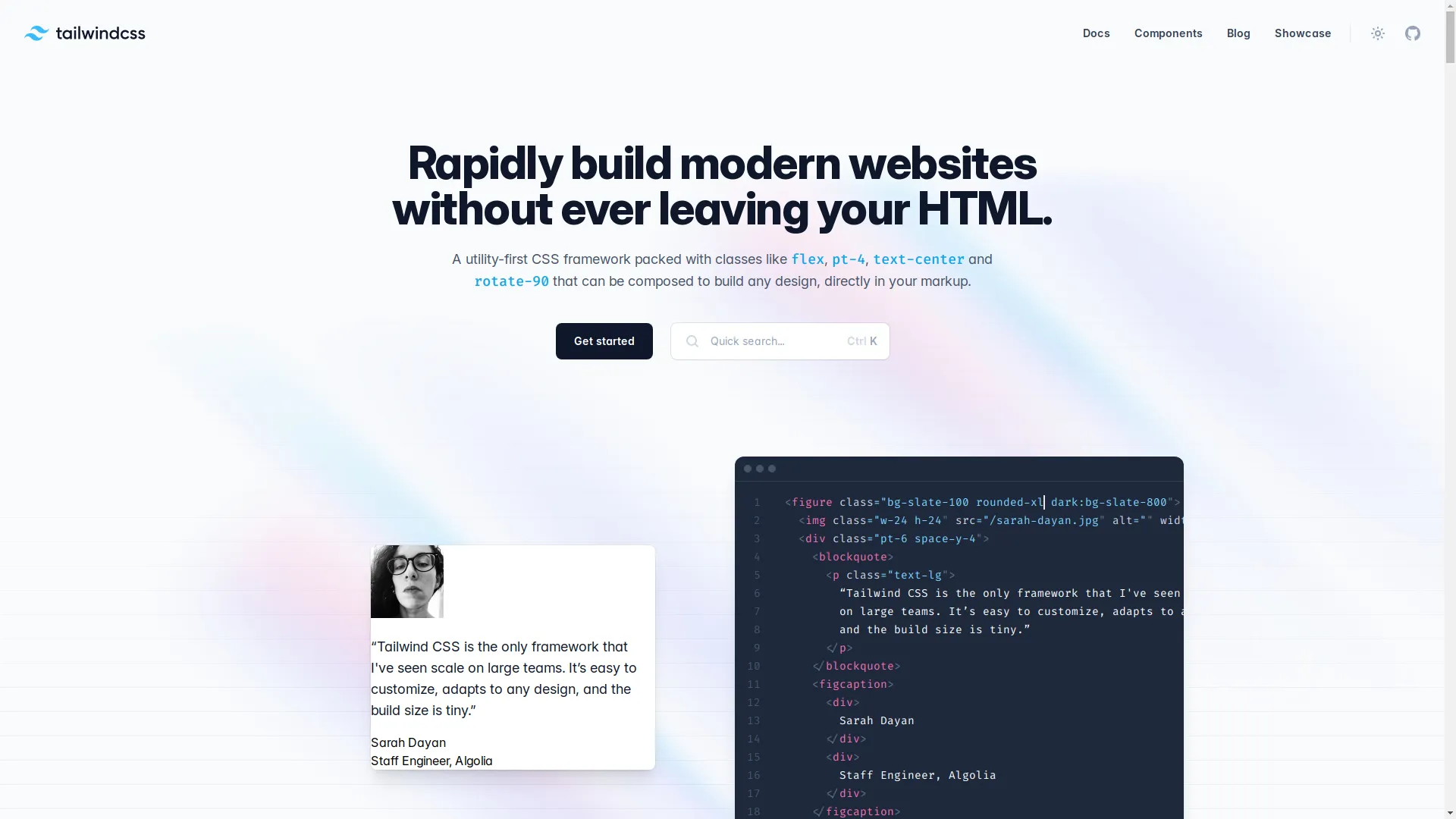
If you like utility-first CSS, Tailwind is pretty neat for managing spacing.
<ul class="space-y-2">
  <li class="px-2">First Thing</li>
  <li class="px-2">Second Thing</li>
  <li class="px-2">Third Thing</li>
</ul>
space-y-2
adds vertical spacing, while
px-2
adds horizontal padding. Easy peasy!
You can try this feature yourself at img2html.com .
c. CSS Variables and Mixins: For the Nerds
For those who like to get fancy, CSS Variables and SCSS Mixins can make your life easier.
Using CSS Variables:
:root {
  --list-spacing: 5px;
}

li {
  margin-bottom: var(--list-spacing);
}
This lets you change spacing across your whole site by just changing one value.
SCSS Mixin for list spacing:
@mixin list-spacing($margin) {
  li {
    margin-bottom: $margin;
  }
}

ul {
  @include list-spacing(5px);
}
Mixins let you reuse CSS chunks, saving you time and keeping things tidy.

8. Why This Matters for Users and Speed
All this fuss over spacing isn't just about looking pretty. Good spacing makes your site:
- Easier to read
- Simpler to navigate
- Look more professional
Plus, optimizing your CSS can make your site load faster, which is great for keeping visitors happy and impressing search engines.
Want to keep people on your site and make Google love you? Good spacing is part of the secret sauce!

9. Oops! Common Mistakes to Avoid
Even pros mess up sometimes. Here are some things to watch out for:
- Using too many negative margins (they can make things weird)
- Forgetting about browser defaults (always start with a reset)
- Making things so tight they're hard to read or click
- Forgetting to check how it looks on phones
- Using too many classes (it can make your HTML messy)
Think of it like cooking – too much of anything can ruin the dish!
10. Wrapping It Up
Congrats! You've made it through the wild world of list spacing in HTML and CSS. From understanding why lists look the way they do to using fancy techniques like Flexbox and Tailwind, you're now equipped to make your lists look awesome on any website.
Remember, small tweaks can make a big difference. Don't be afraid to experiment until your lists look just right.

11. Now It's Your Turn
Ready to make your web designs pop? Start using these tricks today and see how much better your sites look. Whether you're fixing up an old project or starting something new, good list spacing can really make your site shine.
Need more help? Dive into tutorials, join some web dev communities, and practice, practice, practice! The web is your playground, and with these tools, you can build some seriously cool stuff.
Share your list-spacing wins (or fails – we all have 'em) with other devs. Let's learn from each other and make the web a prettier place, one list at a time.
Happy coding, folks! 🚀

Related Articles
-
How to Use Image to HTML Tools
Expand your knowledge on converting images to HTML and CSS code effectively.
-
Top 10 Tools for Converting Images to Responsive HTML and CSS Code
Discover the best tools available for transforming your static images into responsive web code.
-
How to Automate Your Web Design Process with Image to Code AI
Learn how AI can streamline your web design workflow by converting images to code automatically.
*P.S. We'll keep updating this guide as web design evolves, so bookmark it and check back for the latest tips and tricks!*