Intro
Ever wished you could make your Google Docs work smarter without breaking a sweat? Imagine having checkboxes that update themselves based on stuff from your favorite apps. Sounds pretty sweet, right? Well, with Make.com's API and a bit of HTML magic, you can make it happen. In this guide, we'll show you how to use Google Docs HTML for checkboxes through the Make.com API. Whether you're a tech whiz or just starting out with automation, this article's got you covered.
What's Make.com and Why Use It with Google Docs?
Make.com in a Nutshell
Make.com (used to be called Integromat) is this cool tool that connects different apps and services. It lets you automate stuff without having to write code. Think of it like a super-connector for all your favorite tools.
Why Bother with Make.com and Google Docs?
Google Docs is pretty much everywhere these days, from writing reports to working on projects together. When you hook up Make.com with Google Docs, you can do some pretty neat stuff:
- Make documents automatically based on info from other apps like Airtable or Google Sheets.
- Update stuff in your documents on its own, like checkboxes, tables, or pictures.
- Make your work smoother by letting the computer handle the boring, repetitive tasks.
HTML in Google Docs: What's the Big Deal?
Why HTML for Checkboxes?
Google Docs is great, but it can't do everything. That's where HTML comes in handy. By using HTML, you can:
- Make checkboxes that look and work just how you want them to.
- Create checkboxes that can interact with other parts of your document or data from outside.
- Keep your checkboxes up-to-date automatically with info from Make.com.
Perks of Using HTML
Putting HTML into Google Docs through Make.com's API has some cool benefits:
- You can make the checkboxes look and work exactly how you need them to.
- It saves time by automating how checkboxes are added and managed.
- You can easily grow your document automation as your projects get bigger and more complex.
Getting Make.com Ready for Google Docs API Calls
What You Need
Before we dive in, make sure you've got:
- A Make.com account (sign up if you haven't already)
- A Google account with access to Google Docs
- A basic idea of how APIs and HTML work (it'll help, but don't worry if you're not an expert)
Setting It Up Step by Step
-
Connect Google Docs to Make.com:
- Log into Make.com
- Go to "Connections"
- Pick Google Docs and let Make.com access your docs
-
Start a New Scenario:
- In Make.com, click "Create a new scenario"
- Choose Google Docs as your starting point
-
Set Up the Trigger:
- Decide what will kick off your scenario, like updating a doc or getting new info from another app
-
Add the "Make an API Call" Part:
- After setting up your trigger, add a new module and pick "Make an API Call"
- Set it up to talk to the Google Docs API
-
Set Up the API Call:
- Choose POST as the HTTP method
- Put in the right URL from the Google Docs API docs
- Include your HTML checkbox code in the request, making sure it's formatted correctly
-
Test It Out:
- Run a test to see if everything's working
- Check your Google Docs to see if the checkboxes show up like they should
Making Checkboxes in Google Docs with HTML
Writing the HTML Code
Making checkboxes with HTML lets you customize them more. Here's a simple example:
<input type="checkbox" id="checkbox1" name="checkbox1" value="value1">
<label for="checkbox1">Option 1</label><br>
<input type="checkbox" id="checkbox2" name="checkbox2" value="value2">
<label for="checkbox2">Option 2</label><br>
This code makes two checkboxes with labels. You can change the id, name, and value to fit what you need.
Putting Checkboxes in via API
To add these checkboxes to a Google Doc using the Make.com API:
- Get your HTML ready: Make sure your code is formatted right and doesn't have any errors.
- Encode the HTML: You might need to URL-encode or escape the HTML before sending it through the API.
- Send the API request: Use the "Make an API Call" module in Make.com, and put your HTML content in the request body.
- Check if it worked: Open your Google Doc to make sure the checkboxes are there and look right.
Fixing Common Problems
Dealing with 404 and 400 Errors
Running into errors with API calls can be a pain. Here's how to handle the common 404 and 400 errors:
- 404 Error (Not Found):
- Why it happens: The document ID might be wrong, or Make.com can't access the document.
- How to fix it: Double-check the document ID and make sure the sharing permissions are set up right. Check that the account you're using has the right access.
- 400 Error (Bad Request):
- Why it happens: There might be something wrong with how your request is formatted or the JSON structure in your API call.
- How to fix it: Look at the API docs carefully to make sure your request body is formatted correctly. Use JSON validators to check for any syntax errors.
Tips to Avoid Messing Up
- Use Make.com's DevTool: It lets you look at and debug your API calls. Use it to see what data is being sent and received.
- Keep the Google Docs API docs handy: They've got detailed info about available endpoints, required parameters, and example requests.
- Start simple: Begin with basic API calls to add simple things before trying more complex stuff like tables or dynamic checkboxes.
- Test bit by bit: Test each part of your scenario separately to figure out where problems might be happening.
Advanced Stuff and Making Things Better
Creating Checkboxes on the Fly
For more advanced uses, you might want to create checkboxes automatically based on data from another source, like Airtable. Here's how:
- Get data from Airtable: Use Make.com to pull in data records from Airtable.
- Go through each record: Set up an iterator to process each record one by one.
- Make HTML checkboxes: For each record, create an HTML checkbox with the right labels and values.
- Put them in Google Docs: Gather all the HTML code and use the Make.com API module to add the checkboxes to your Google Doc.
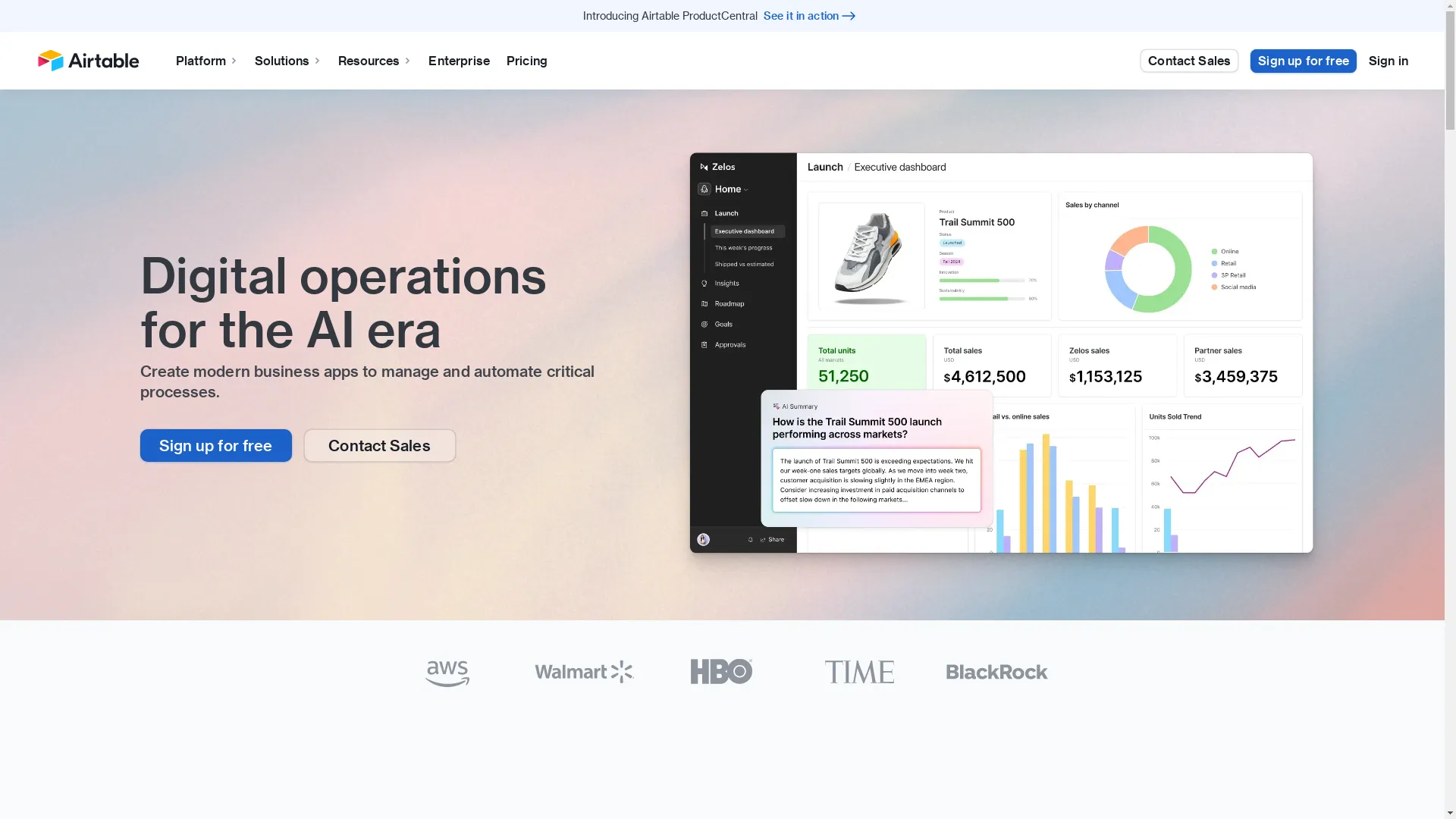
Hooking Up with Other Apps (like Airtable)
Connecting Google Docs with apps like Airtable can make managing data a lot easier. For example:
- Automate making invoices: Pull client info from Airtable and fill in a Google Docs invoice template with checkboxes for different service options.
- Handle task lists: Sync tasks from Airtable into a Google Doc, with checkboxes showing whether they're done or not.
Making Things Easy for Users and Running Smoothly
Why User Experience Matters
Making things easy for users is super important for keeping productivity up. Here's why:
- Easy to use: Simple, intuitive checkboxes make your documents more user-friendly.
- Saves time: Automated checkboxes save time and cut down on manual mistakes.
- Interactive: Documents that you can interact with are more engaging and useful.
Keeping an Eye on How Things are Working
To make sure your automation setup is running well, keep track of these key things:
- How often API calls succeed: Track how many API calls work versus how many fail.
- How long it takes: Measure how long it takes for your API calls to run and finish.
- How often errors happen: Keep an eye on how often errors occur and what types they are to spot recurring issues.
Real-Life Uses and Examples
Automating Invoices with Checkboxes
Imagine you're running a freelance business and need to send out lots of invoices each month. By connecting Make.com with Google Docs:
- Set up a template: Create an invoice template in Google Docs with spots for client details and checkboxes for services.
- Fill in the data: Use Make.com to pull info from Airtable, including client details and what services they picked.
- Add the checkboxes: Automatically put in checkboxes next to each service, marking them as done or not based on your business rules.
- Finish up: Create a PDF invoice and send it straight to your client's email.
Handling To-Do Lists and Surveys
Whether you're managing a project or running a survey, dynamic checkboxes can make things better:
- To-do lists: Make task checklists that update based on project milestones pulled from a project management tool.
- Surveys: Design surveys in Google Docs where checkboxes represent different answer choices, automatically filled in based on respondent data.
Wrapping It Up
As digital workflows keep changing, connecting Google Docs with Make.com through API calls opens up a ton of automation possibilities. By using HTML for dynamic checkboxes, you can create interactive, efficient, and highly customized documents that fit exactly what you need. Whether you're automating invoices, managing tasks, or running surveys, the teamwork between Make.com and Google Docs makes sure you're always ahead in productivity and efficiency.
What to Do Next
Ready to take your Google Docs automation to the next level? Start playing around with Make.com's API modules today and see how HTML checkboxes can change your workflows. Share what you learn and any challenges in the Make.com community forums, and check out Make Academy for more tutorials and tips. Let's automate our way to a more productive future!
Personal Story
I remember the first time I tried to automate something simple between two apps. I was super excited at first, but that quickly turned into frustration as I kept running into error messages and couldn't find clear instructions. But, like any good puzzle, sticking with it paid off. With each little change and test, things started to come together, and suddenly, what seemed impossible became a smooth, automated process. If you're on this journey too, trust me—you're not alone, and it's totally worth it in the end.
A Little Joke
Ever feel like your Google Docs is making fun of you because it won't do what you want? Don't worry, we've all been there. But with Make.com's API and a bit of HTML magic, you can turn that mockery into something amazing!
Food for Thought
Isn't it crazy how a few lines of code and the right tools can turn boring tasks into automated masterpieces?
An Analogy
Think of Make.com as the conductor of an orchestra, and Google Docs as one of the instruments. When they play together in harmony, you get a beautiful symphony of efficiency and productivity.
Getting You Involved
Have you ever wished your documents could update themselves? Well, here's your chance to make that wish come true!