Intro
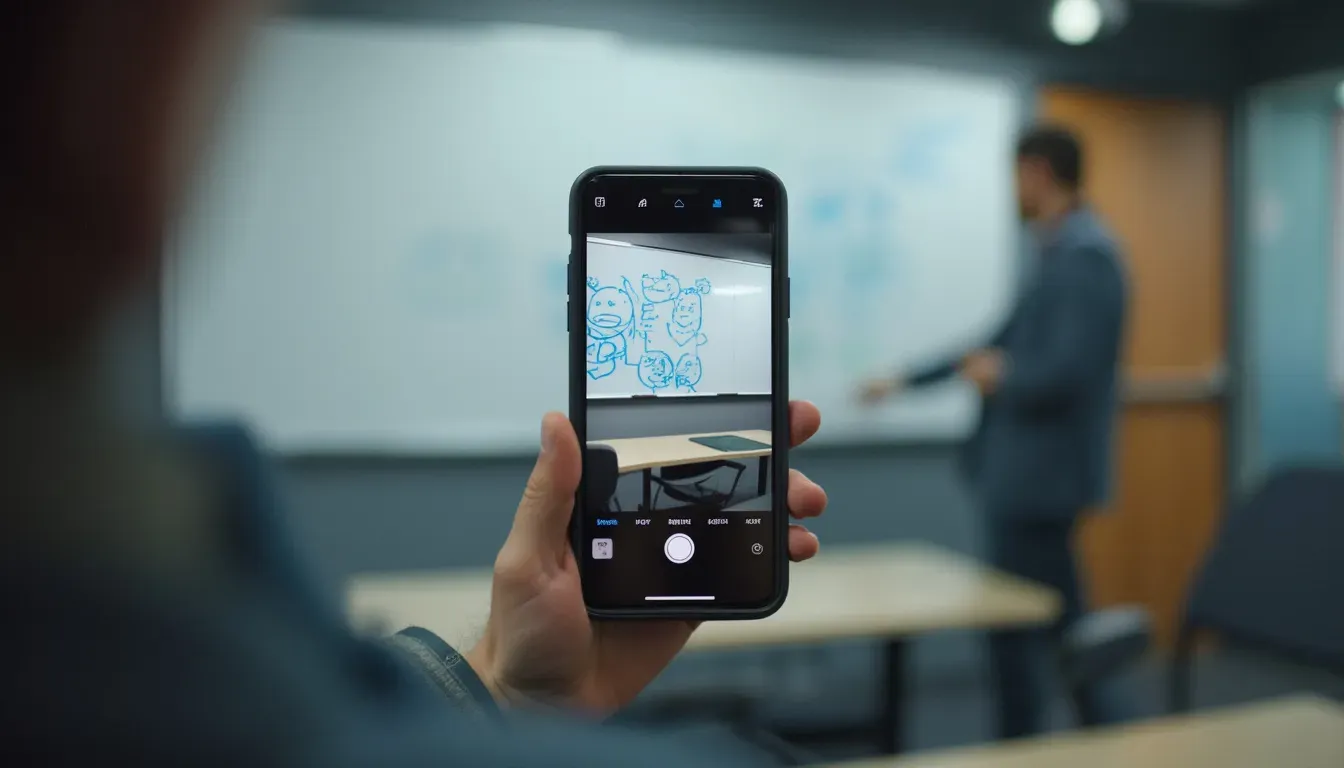
Ever taken a pic of some handwritten notes or a printed document and wished you could magically turn it into editable text? You're not alone. In today's digital world, being able to convert images to text isn't just handy - it's pretty much essential for students, professionals, content creators, and anyone looking to work smarter. Whether you're trying to digitize old family photos with important notes or need to grab data from a messy whiteboard, knowing how to turn a picture into text can save you tons of time and make your life way easier.
But how does this magic actually happen? And with so many tools out there claiming to do the job, how do you pick the right one? Let's dive into the world of image-to-text conversion and explore the latest tech, must-have tools, and practical tips to make this process as smooth and effective as possible.
What's Image to Text Conversion?
At its core, image to text conversion is all about pulling text out of images. This is mainly done using something called Optical Character Recognition (OCR). Imagine having a pile of scanned docs or photos of notes on your phone - OCR tech lets you turn these images into editable and searchable text documents.
But why's this important? Well, with the explosion of digital content, we need to digitize physical info more than ever. Businesses can streamline their work by converting contracts and invoices into digital formats. Students can easily transcribe handwritten notes into their laptops. Content creators can reuse info from images posted on social media or websites. The possibilities are endless, and the benefits are huge.
How Does It Work?
You might be wondering, "How does a computer actually read text from an image?" The process involves a few sophisticated steps:
- Image Preprocessing: This is where the image gets prepped for recognition. It involves fixing the orientation, boosting contrast, removing noise, and adjusting brightness to make the text stand out more.
- Text Detection: The system finds areas in the image that contain text. This can be straightforward with simple documents but trickier with varied backgrounds or artistic text.
- Character Recognition: Once the text areas are found, each character is analyzed and converted into digital text. This step uses pattern recognition and machine learning algorithms to accurately identify letters, numbers, and symbols.
- Post-processing: After recognition, the system might do extra steps like spell checking, formatting, and organizing the text to make sure it matches the original layout as closely as possible.
Thanks to AI and machine learning, OCR has gotten way more accurate and faster, making image to text conversion more reliable and accessible than ever before.
Latest Trends
The field of image to text conversion is changing fast, driven by new tech and a growing need for efficiency. Here are some of the latest trends shaping this space:
- AI-Powered OCR: AI has taken OCR to new heights. Modern OCR systems use deep learning algorithms to understand and recognize all kinds of fonts, handwriting styles, and complex layouts. This means higher accuracy rates, even with tricky images.
- Real-Time Text Extraction: Real-time OCR lets users capture and convert text instantly using smartphones or tablets. This is super useful for on-the-go tasks like translating signs while traveling or grabbing info during meetings.
- Cloud-Based OCR Services: Cloud computing has enabled OCR tools to handle huge amounts of data without slowing down local devices. Users can access powerful OCR services through APIs, easily adding text extraction capabilities to their own apps.
- Multi-language Support: With globalization, being able to recognize and convert text in multiple languages is more important than ever. Modern OCR tools support tons of languages, including those with complex scripts and diacritics, making image to text conversion accessible to a wider audience.
- Enhanced Security and Privacy: Since image to text conversion often involves sensitive info, there's a growing focus on security. Advanced encryption and secure processing protocols make sure users' data stays private and protected throughout the conversion process.
Top Tools for Converting Images to Text
With so many image to text tools out there, choosing the right one can be overwhelming. Let's break down the essential tools into categories to help you find what works best for you.
Online OCR Tools
| Popular Options | Pros | Cons |
|---|---|---|
|
|
|
Desktop Applications
| Popular Options | Pros | Cons |
|---|---|---|
|
|
|
Mobile Apps
| Popular Options | Pros | Cons |
|---|---|---|
|
|
|
Browser Extensions
| Popular Options | Pros | Cons |
|---|---|---|
|
|
|
API Services
| Popular Options | Pros | Cons |
|---|---|---|
|
|
|
Step-by-Step Guide
Now that you know the different tools available, let's walk through the steps to convert an image to text using various methods.
Using Online Tools
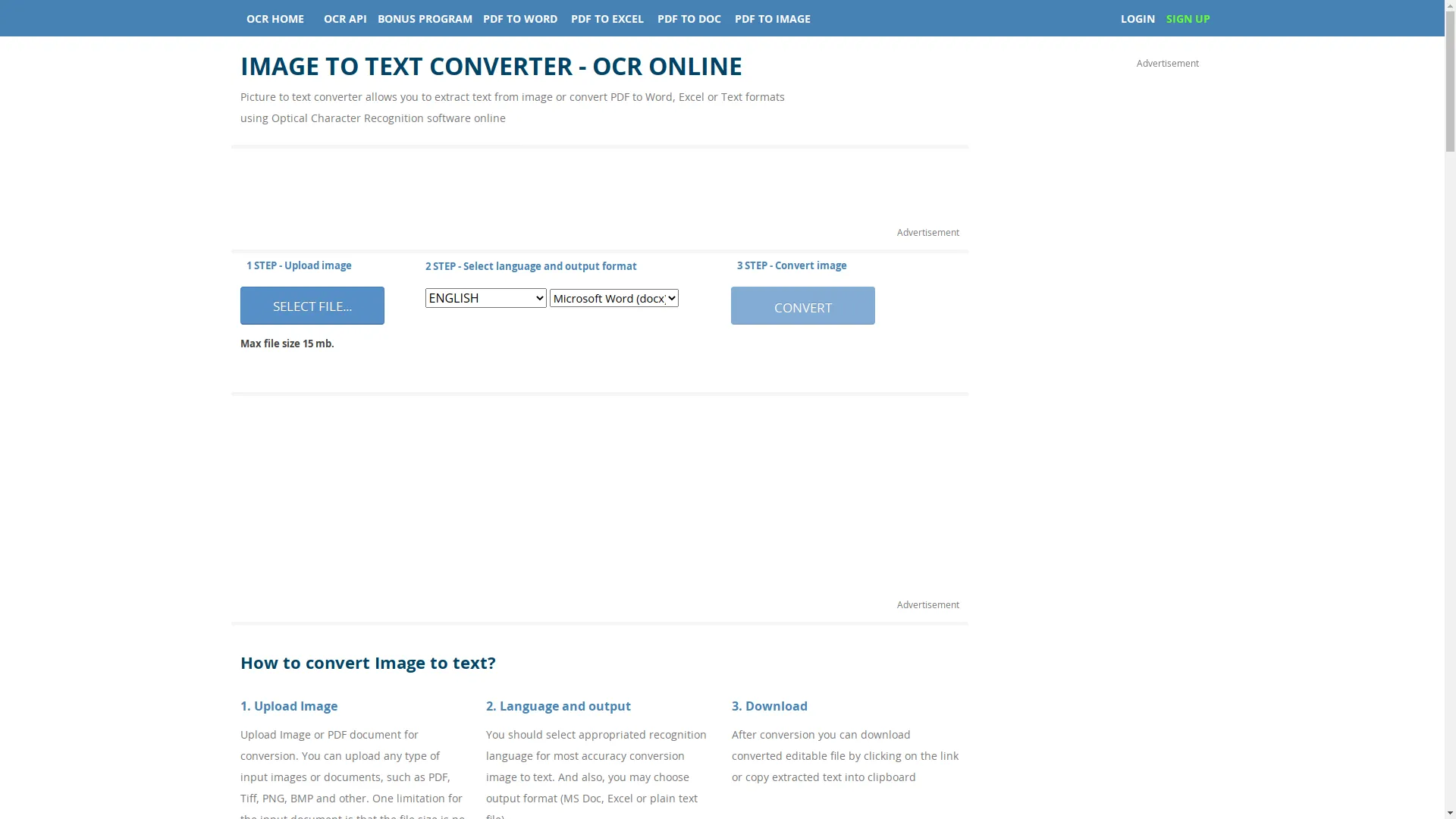
Example: OnlineOCR.net
-
Upload the Image:
- Go to OnlineOCR.net .
- Click on "Select file..." and choose the image you want to convert (supports JPG, PNG, BMP, PDF, etc.).
-
Select Language and Output Format:
- Choose the language of the text in your image to improve accuracy.
- Pick the output format you want (Microsoft Word, Excel, Plain Text).
-
Convert the Image:
- Click on the "Convert" button.
- Wait for the processing to finish, usually within a few seconds.
-
Download or Copy the Text:
- Once it's done, download the file or copy the extracted text directly from the webpage.
Using Desktop Software
Example: Adobe Acrobat
-
Open Adobe Acrobat:
- Launch Adobe Acrobat on your computer.
-
Create PDF from Image:
- Click on "File" > "Create" > "PDF from File..."
- Select your image file and convert it to PDF.
-
Perform OCR:
- In the right-hand pane, click on "Edit PDF."
- Acrobat will automatically perform OCR on the document.
-
Export to Word:
- Click on "File" > "Export To" > "Microsoft Word" > "Word Document."
- Save the editable Word document where you want.
Using Mobile Applications
Example: Microsoft Office Lens
-
Install and Open Office Lens:
- Download and install Microsoft Office Lens from your device's app store.
- Open the app and select the type of document you're capturing (e.g., document, whiteboard).
-
Capture the Image:
- Point your camera at the text you want to convert and take a photo.
- Adjust the borders if needed to make sure all text is captured.
-
Review and Convert:
- After capturing, review the image and make any necessary adjustments.
- Choose to save the image and perform OCR by selecting "Word" or another format you want.
-
Edit the Text:
- The app will process the image and convert the text into an editable document.
- Save or share the document as needed.
Advanced Tricks and Features
Once you're comfortable with basic image to text conversion, you can explore advanced features to boost your productivity even more.
Multi-language Support
Modern OCR tools support a wide range of languages, letting you extract text from documents in different languages easily. Picking the right language during the conversion process really improves accuracy, especially with languages that have unique scripts or diacritics.
Batch Processing
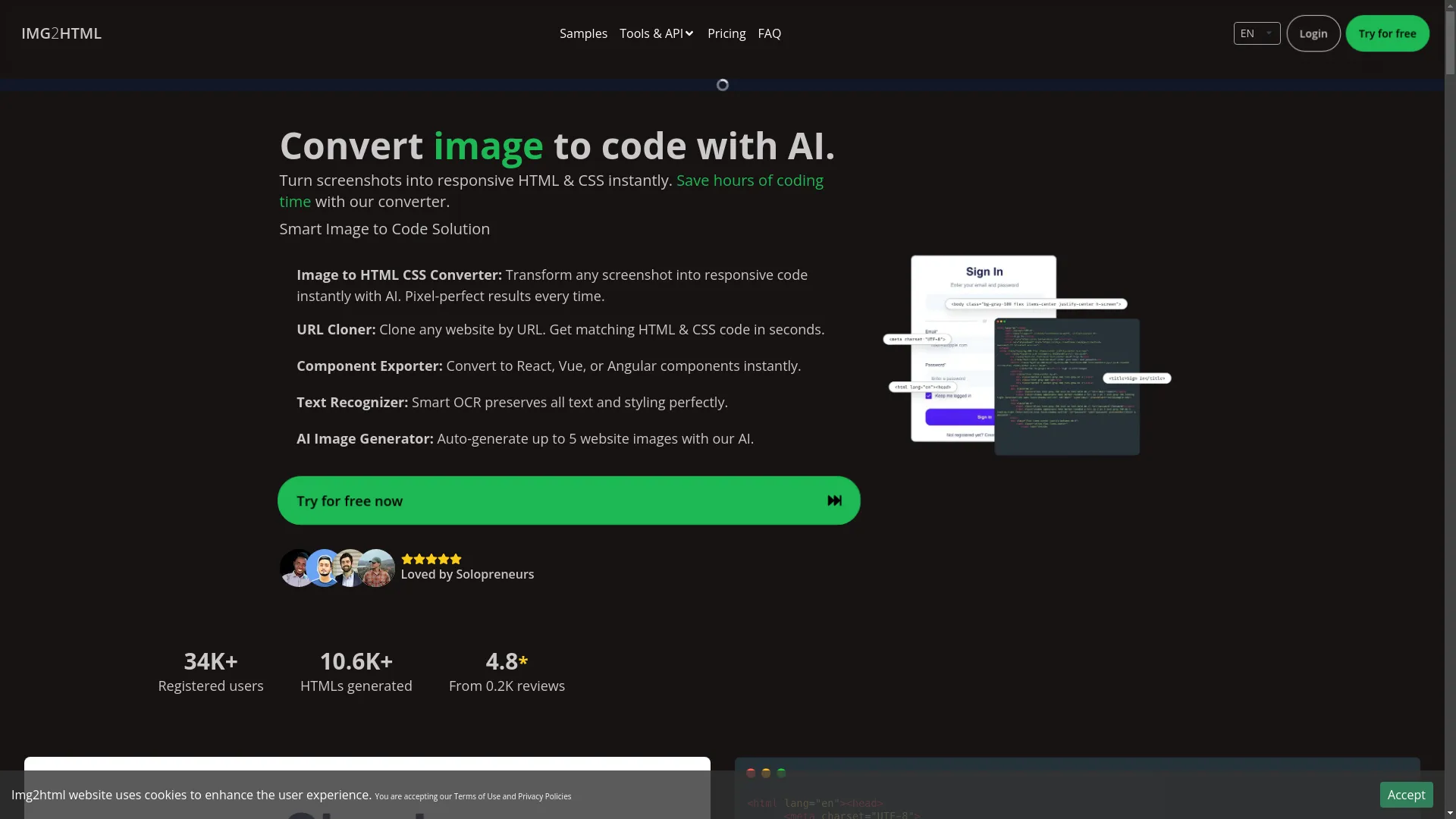
If you've got multiple images to convert, batch processing can save you a ton of time. Tools like Img2HTML and Adobe Acrobat let you upload and convert multiple files at once, streamlining your workflow.
Integration with Other Services
Integrating OCR capabilities with other tools and services can enhance functionality. For example, integrating OCR with cloud storage services like Google Drive or Dropbox allows for automatic syncing and access across devices. API services let developers embed OCR features directly into their applications, creating custom solutions tailored to specific needs.
Secure Conversion and Privacy
When dealing with sensitive information, making sure your data is secure and private is crucial. Advanced OCR tools offer features like encrypted processing, secure storage options, and automatic deletion of files after conversion to protect your information from unauthorized access.
Real-World Uses
Image to text conversion has a wide range of applications across different fields. Let's explore some of the most common and impactful use cases.
Education
Students and teachers often deal with handwritten notes, scanned documents, and textbook images. OCR technology can convert these images into digital text, making it easier to search, organize, and share information. Imagine being able to quickly convert a snapshot of your lecture notes into an editable document for easier studying and revision!
Business and Office Use
In the business world, managing documents efficiently is crucial. OCR can transform scanned contracts, invoices, and receipts into editable formats, simplifying data entry and record-keeping. Tools like Img2HTML not only convert images to text but also provide code generation, enabling seamless integration with web development workflows.
Content Creation
Content creators frequently work with images from various sources, including social media, websites, and marketing materials. OCR allows them to extract text for content repurposing, transcription, and translation. This capability is especially useful for bloggers, journalists, and marketers who need to streamline their content production processes.
Accessibility
OCR technology plays a vital role in enhancing accessibility for individuals with visual impairments. By converting images to text, screen readers can more effectively interpret and vocalize the content, making digital information more accessible to everyone.
Tips for Better Text Extraction
While OCR technology has come a long way, getting high-quality text extraction still requires attention to certain factors. Here are some tips to ensure the best results:
- Use High-Resolution Images: The quality of the image directly impacts the accuracy of text extraction. Make sure your images are clear, well-lit, and have a high resolution (preferably 200 DPI or higher).
- Avoid Complex Backgrounds: Text on plain backgrounds is easier to recognize. Avoid images with intricate patterns or colors that can interfere with text detection.
- Straighten and Align Text: Make sure the text is properly aligned and not skewed. Many OCR tools can correct minor skewing, but starting with a properly aligned image improves accuracy.
- Choose the Right Language Settings: Selecting the correct language during conversion helps the OCR tool recognize characters more accurately, especially for languages with unique scripts.
- Review and Edit Extracted Text: After conversion, always review the extracted text for any errors or formatting issues. This ensures that the final document meets your requirements.
What's Next for Image to Text Conversion
The future of image to text conversion looks bright, with ongoing advancements set to make the process even smoother and more accurate. Here are some trends to watch:
- Enhanced AI and Machine Learning: As AI and machine learning algorithms get more sophisticated, OCR technology will achieve near-perfect accuracy, even with challenging images like handwritten documents and stylized fonts.
- Integration with Augmented Reality (AR): Imagine pointing your smartphone at a sign and instantly having the text extracted and translated in real-time using AR overlays. This integration is already being explored and promises exciting applications in travel, education, and beyond.
- Improved Multi-modal Capabilities: Future OCR tools will not only extract text but also understand the context, layout, and relationships between different elements in an image, providing richer and more comprehensive data extraction.
- Greater Accessibility Features: Advancements will continue to enhance accessibility, making digital content more inclusive for individuals with disabilities through better text extraction and integration with assistive technologies.
Wrapping Up
Turning a picture into text isn't a complicated task reserved for tech experts anymore. With the improvements in OCR technology and the tons of tools available, anyone can easily convert images into editable and searchable text documents. Whether you're a student trying to digitize your notes, a professional managing business documents, or a content creator streamlining your workflow, understanding and using image to text conversion can really boost your productivity and efficiency.
As technology keeps evolving, staying up to date with the latest tools and trends ensures you make the most of what OCR has to offer. So next time you find yourself looking at an image full of information, remember that with the right tools and techniques, you can unlock the text within and transform the way you work and learn.
Ready to give it a shot? Check out some of the tools mentioned above, try different methods, and find the solution that works best for you. Happy converting!