Introduction
Ever looked at a cool website and thought, "Man, I wish I could save all these pics for later"? Or maybe you're a dev trying to speed up your workflow by automating image downloads for testing or content creation. Well, AppleScript might just be your new best friend - it's a nifty scripting language that can help you automate tasks on your Mac without breaking a sweat.
In this guide, we're gonna dive into using AppleScript to grab images straight from the HTML DOM (that's the Document Object Model) of any website. Whether you're a pro scripter or just dipping your toes in, this article will give you the know-how to efficiently pull images from web pages.
So grab a coffee, get comfy, and let's dive into this automation adventure together!
Understanding AppleScript and Its Uses in Web Automation
Before we get into the nitty-gritty of downloading images, let's take a sec to understand what AppleScript is and why it's awesome for web automation.
What is AppleScript?
AppleScript is basically a scripting language cooked up by Apple to help different apps on macOS talk to each other. Think of it like a personal assistant for your computer - it can automate repetitive tasks, manage files, control apps, and a whole bunch more without you lifting a finger.
Why Use AppleScript for Web Automation?
Sure, there are other scripting languages out there like Python, JavaScript, and Ruby. But AppleScript really shines when it comes to working seamlessly with macOS apps. If you're in the Apple ecosystem, AppleScript can be your secret weapon. It lets you control Safari, mess with files in Finder, interact with Mail, and tons more, all through simple scripts.
For web automation, AppleScript can:
- Control web browsers to go to specific URLs
- Interact with stuff on web pages
- Pull out data like images, text, or links
- Automate form submissions and other user interactions
By using AppleScript for these tasks, you can save a ton of time, cut down on mistakes, and streamline your workflow.
What is the HTML DOM?
Before we can start downloading images from a webpage, we gotta understand how a webpage is put together. This is where the HTML DOM comes in.
Defining the HTML DOM
The HTML DOM (Document Object Model) is basically a programming interface for web documents. It represents the page so that programs can change the structure, style, and content of the document. Think of it like a family tree for a webpage - each branch or leaf is a part of the document, whether it's an element, attribute, or text.
Why is the DOM Important for Image Downloading?
When you want to download images from a webpage, you're basically pulling out the src attribute from the
<img>
tags in the HTML DOM. Understanding the DOM lets your AppleScript navigate the structure of the webpage, find the images, and grab their URLs for downloading.
Visualizing the DOM
Picture the DOM as a family tree of a webpage:

- Document: The root of the tree
- Head: Contains metadata, links to stylesheets, scripts, etc.
- Body: Contains all the visible stuff on the webpage
- Divs, Paragraphs, Images, Links, etc.: Each of these elements is a branch in the DOM tree
Getting your head around this hierarchy is super important when you're scripting, 'cause it determines how you access and mess with different parts of the webpage.
Why Download Images from the HTML DOM?
You might be thinking, "Why bother with all this scripting? Can't I just right-click and save images?" Well, sure, manually saving images from one webpage is doable, but what if you need to download images from a bunch of pages or even entire websites? This is where automation really shines.
Benefits of Automated Image Downloading:
- Efficiency: Save a ton of time by automating repetitive tasks, especially when dealing with loads of images
- Consistency: Make sure you're downloading all images uniformly without missing any
- Customization: Automate not just the download but also organize images into folders, rename them, or convert formats if you need to
- Integration: Combine image downloading with other tasks like backup, analysis, or content creation
Use Cases:
- Developers: Pulling images for testing purposes
- Content Creators: Gathering images for blog posts, presentations, or design projects
- Researchers: Collecting data from various websites for analysis
- Designers: Saving design elements from different sites for inspiration or reuse
By automating the process with AppleScript, you're not just saving time - you're creating a scalable solution for all your image downloading needs.
Prerequisites: Tools and Setup
Before we jump into writing AppleScript code, let's make sure you've got all the necessary tools and your environment set up. Here's what you'll need:
- Mac Computer: AppleScript only works on macOS, so you'll need a Mac to run and develop your scripts.
- Script Editor: macOS comes with an app called "Script Editor" - that's where you'll write and run your AppleScripts. You can find it in Applications > Utilities > Script Editor.
- Web Browser: For this guide, we'll use Safari, since AppleScript plays nice with it. But with a few tweaks, you can use other browsers like Google Chrome too.
- Basic Knowledge of AppleScript: You don't need to be an expert, but knowing a bit about Apple's scripting syntax and basic commands will help.
- Internet Access: To access and download images from websites, obviously.
- Optional - Additional Tools: Depending on what you want to do, you might want tools like curl for downloading files or jq for parsing JSON data.
Setting Up Script Editor:
- Open Script Editor: Go to Applications > Utilities > Script Editor.
- Create a New Document: Click on File > New or hit Command + N.
- Set the Language: Make sure you're writing in AppleScript. You can set the language from the dropdown menu if you need to.
- Enable Accessibility (If Necessary): Some scripts might need accessibility permissions. You can set this up in System Preferences > Security & Privacy > Privacy > Accessibility.
With all that in place, you're ready to start scripting!
Step-by-Step Guide to Downloading Images with AppleScript
Now that we've got our setup ready, let's dive into the practical stuff of downloading images using AppleScript. We'll break it down into manageable steps:
- Accessing the Web Page
- Parsing the HTML DOM
- Extracting Image URLs
- Downloading the Images
Accessing the Web Page
First things first, we need to get to the webpage that has the images we want to download. We'll use Safari for this example.
tell application "Safari"
    activate
    open location "https://www.example.com"
    delay 5 -- Wait for the page to load
end tell
Explanation:
- tell application "Safari": Tells the following commands to go to Safari.
- activate: Brings Safari to the front.
- open location "https://www.example.com": Opens the URL you specify.
- delay 5: Waits for 5 seconds to let the page load.
Pro Tip: Adjust the delay based on how fast your internet is and how complex the webpage is to make sure it loads completely before moving on.
Parsing the HTML DOM
Once the webpage is loaded up, the next step is to access and parse its HTML DOM to find the images. AppleScript can interact with the DOM using JavaScript.
tell application "Safari"
    tell document 1
        set pageSource to source
    end tell
end tell
Explanation:
- tell document 1: Targets the first open document (webpage) in Safari.
- set pageSource to source: Grabs the entire HTML source code of the page.
Alternative Approach Using JavaScript:
tell application "Safari"
    set imageURLs to do JavaScript "
        var imgs = document.getElementsByTagName('img');
        var srcs = [];
        for(var i=0; i
Explanation:
- do JavaScript: Runs the JavaScript code within the context of the webpage.
-
The JavaScript snippet grabs all
<img>elements, pulls out their src attributes, and returns them as a JSON string. - do shell script: Uses Python's json.tool to parse the JSON string into a readable list.
Extracting Image URLs
With the HTML source or JavaScript execution, you can pull out the URLs of the images embedded in the webpage.
set AppleScript's text item delimiters to ","
set imageURLList to text items of imageList
set AppleScript's text item delimiters to ""
Explanation:
- This part splits the JSON string into a list of individual image URLs by using a comma as the delimiter.
Handling JSON in AppleScript:
AppleScript doesn't natively support JSON parsing. To work around this, you can use shell scripts with tools like jq or Python's json module.
Example Using Python:
set imageURLs to do shell script "echo " & quoted form of imageURLs & " | python -c 'import sys, json; print("\n".join(json.load(sys.stdin)))'"
set imageURLList to paragraphs of imageURLs
Explanation:
- This script uses Python to read the JSON array and output each URL on a new line.
-
paragraphs of imageURLs:Splits the output into a list of URLs.
Downloading the Images
Now that you've got a list of image URLs, the final step is to download them to your local machine. We'll use curl for downloading.
set downloadFolder to (path to desktop as text) & "Downloaded Images:"
tell application "Finder"
    if not (exists folder downloadFolder) then
        make new folder at desktop with properties {name:"Downloaded Images"}
    end if
end tell

repeat with imageURL in imageURLList
    set imageName to do shell script "basename " & quoted form of imageURL
    set destinationPath to POSIX path of downloadFolder & imageName
    do shell script "curl -s " & quoted form of imageURL & " -o " & quoted form of destinationPath
end repeat

display notification "Image download complete!" with title "AppleScript"
Explanation:
-
Creating a Download Folder:
- Sets up the destination folder on your desktop called "Downloaded Images."
- Checks if the folder exists; if not, it creates one.
-
Downloading Each Image:
- Loops through each imageURL in the list.
- Pulls out the image name using basename.
- Builds the full path for where the downloaded image will go.
- Uses curl to download the image quietly (-s) and saves it to the specified path.
-
Completion Notification:
- Once all images are downloaded, a notification pops up to let you know.
Pro Tip: You can beef up the script to handle naming conflicts, double-check if downloads were successful, or organize images into subfolders based on categories or other criteria.
Practical Example: Downloading Images from Img2html
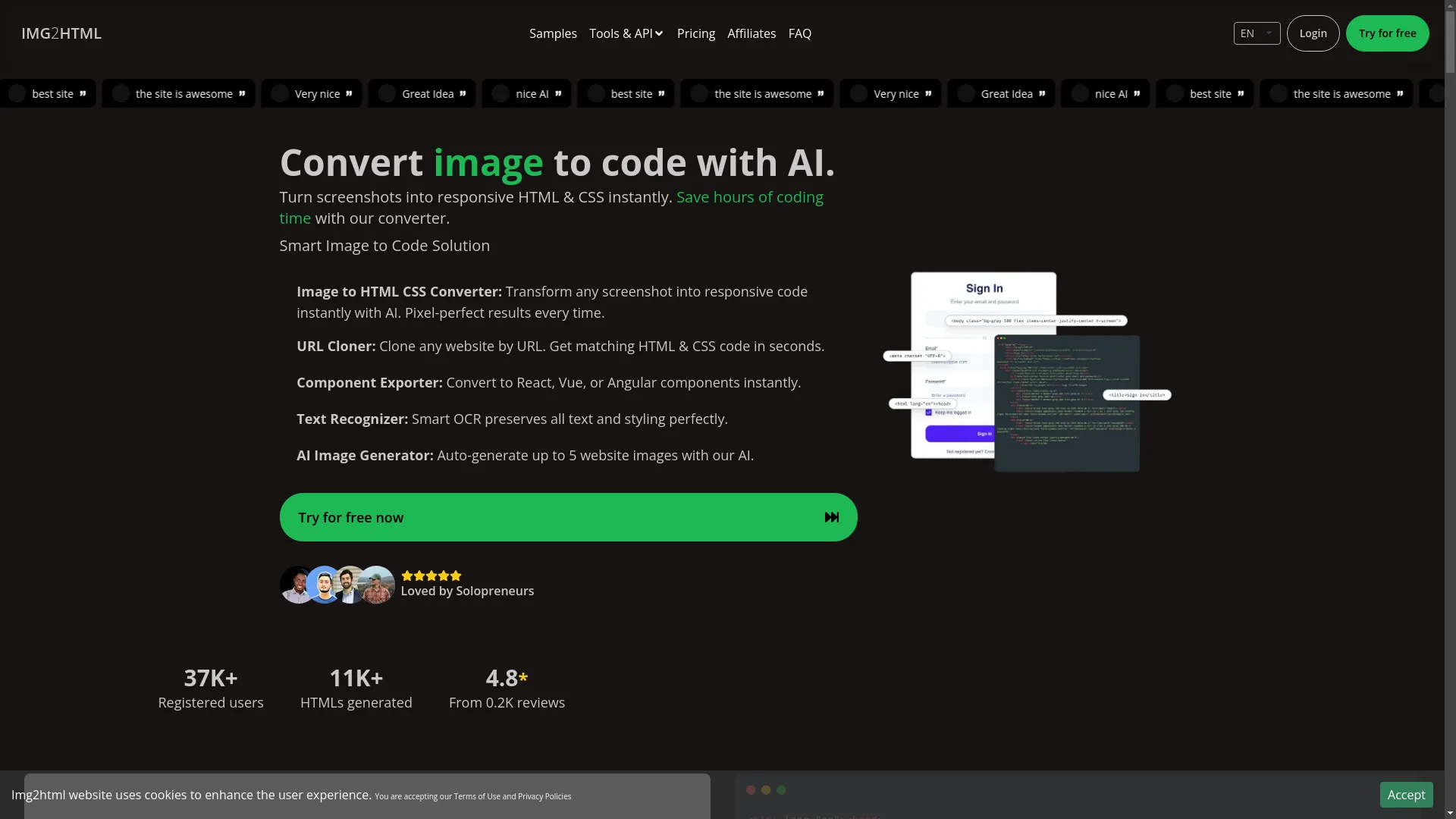
Let's put what we've learned into practice by downloading images from the Img2html website - a platform that turns images into HTML and CSS code in a snap.
Why Img2html?
Img2html shows off a bunch of images demonstrating what it can do, making it a great candidate for our image downloading script. Plus, figuring out how to interact with a content-rich site like this will really solidify your AppleScript skills.
Step 1: Open Img2html in Safari
tell application "Safari"
    activate
    open location "https://www.img2html.com"
    delay 7 -- Increased delay for dynamic content
end tell
Step 2: Extract Image URLs Using JavaScript
tell application "Safari"
    set imageURLs to do JavaScript "
        var imgs = document.querySelectorAll('img');
        var srcs = [];
        imgs.forEach(function(img) {
            srcs.push(img.src);
        });
        JSON.stringify(srcs);
    " in document 1
end tell
Step 3: Parse the JSON and Download
-- Parse JSON using Python
set imageURLsParsed to do shell script "echo " & quoted form of imageURLs & " | python -c 'import sys, json; print("\n".join(json.load(sys.stdin)))'"
set imageList to paragraphs of imageURLsParsed

-- Define download folder
set downloadFolder to (path to desktop as text) & "Img2html Images:"
tell application "Finder"
    if not (exists folder downloadFolder) then
        make new folder at desktop with properties {name:"Img2html Images"}
    end if
end tell

-- Download images
repeat with imageURL in imageList
    try
        set imageName to do shell script "basename " & quoted form of imageURL
        set destinationPath to POSIX path of downloadFolder & imageName
        do shell script "curl -s " & quoted form of imageURL & " -o " & quoted form of destinationPath
    on error errMsg
        log "Failed to download " & imageURL & ": " & errMsg
    end try
end repeat

display notification "Img2html images downloaded successfully!" with title "AppleScript"
Explanation:
- Increased Delay: Complex websites with dynamic content might need more time to load all images.
-
Enhanced JavaScript Selector:
Using
document.querySelectorAll('img')to make sure we catch all image elements. - Error Handling: The try block makes sure that if a particular image fails to download, the script logs the error and keeps going with the next image.
Outcome:
After running the script, you'll find a folder named "Img2html Images" on your desktop with all the images from the Img2html homepage. This automation saves you the hassle of manually saving each image, especially as websites get bigger and more complex.
Handling Common Challenges
Automating tasks like downloading images isn't always smooth sailing. A few challenges can pop up, but with the right strategies, you can handle them like a pro.
Dealing with Dynamic Content
Modern websites often load content dynamically using JavaScript, which can make scraping a bit tricky.
Issue:
AppleScript grabs the page source after the initial HTML load, which might not include images loaded asynchronously or via AJAX.
Solution:
-
Increase Delay:
Give more time for dynamic content to load.
delay 10 -- Adjust as necessary -
Use JavaScript to Wait for Specific Elements:
tell application "Safari"
    do JavaScript "
        function waitForImages() {
            return new Promise((resolve) => {
                let imgs = document.images;
                let total = imgs.length;
                if (total === 0) resolve();
                let loaded = 0;
                for (let img of imgs) {
                    img.onload = img.onerror = () => {
                        loaded++;
                        if (loaded === total) resolve();
                    };
                }
            });
        }
        waitForImages();
    " in document 1
    delay 2 -- Additional delay if necessary
end tell
Explanation:
- This JavaScript function waits for all images to finish loading before moving on.
- It fits into AppleScript's do JavaScript command to make sure all images are present in the DOM.
Managing Multiple Image Formats
Websites use all sorts of image formats like JPEG, PNG, GIF, SVG, and more.
Issue:
Different image formats might need different handling, especially if you plan to process or convert them after downloading.
Solution:
-
Identify Image Formats:
Tweak your JavaScript to sort images based on their file extensions.
var imgs = document.querySelectorAll('img'); var srcs = {jpeg: [], png: [], gif: [], svg: [], other: []}; imgs.forEach(function(img) { var src = img.src; if(src.endsWith('.jpeg') || src.endsWith('.jpg')){ srcs.jpeg.push(src); } else if(src.endsWith('.png')){ srcs.png.push(src); } // Continue for other formats else { srcs.other.push(src); } }); JSON.stringify(srcs); -
Organize Downloads by Format:
Adjust the AppleScript to create subfolders for each format and save images accordingly.
-- Assuming imageURLsParsed is now a dictionary-like structure
-- Use Python or another language to parse and organize

-- Example using Python to handle formats
set imageURLsParsed to do shell script "echo " & quoted form of imageURLs & " | python process_images.py"
-- `process_images.py` would handle organizing and outputting URLs for each format
Pro Tip: Organizing images by format can make later processing steps easier, like optimizing images or converting formats.
Error Handling and Logging
Scripts can run into unexpected issues, like broken image links, network hiccups, or permission problems.
Issue:
Unmanaged errors can make the script stop or skip important steps without letting you know.
Solution:
-
Implement Try-Catch Blocks:
repeat with imageURL in imageList try -- Download logic on error errMsg number errNum log "Error " & errNum & ": " & errMsg end try end repeat -
Logging Failures:
Keep a separate log file to record failed downloads for later review.
set logFile to POSIX path of (path to desktop as text) & "download_errors.log"

repeat with imageURL in imageList
    try
        -- Download logic
    on error errMsg number errNum
        do shell script "echo 'Error " & errNum & ": " & errMsg & " for " & imageURL & "' >> " & quoted form of logFile
    end try
end repeat
Explanation:
- try...on error: Catches any errors that happen within the try block.
- log: Prints error messages to the Script Editor's log.
-
Writing to a
download_errors.logfile helps in tracking and fixing issues after the script runs.
Pro Tip: Keep an eye on your log files regularly to spot patterns or recurring issues that you can fix to make your script more robust.
Advanced Techniques
Once you're comfortable with the basics, you can explore some fancier methods to beef up your image downloading scripts.
Automating with GUI Scripting
Sometimes, directly messing with the DOM isn't enough, especially with elements generated by JavaScript frameworks or stuff that needs user interactions.
What is GUI Scripting?
GUI Scripting lets AppleScript control the graphical user interface of applications, simulating keystrokes, mouse clicks, and more.
Use Case:
Automate interactions like clicking buttons to reveal hidden images or navigating through paginated content.
Sample Script:
tell application "System Events"
    tell application "Safari" to activate
    delay 2
    -- Example: Pressing a key combination to scroll or load more images
    keystroke " " -- Spacebar to scroll down
    delay 2
    -- Repeat as needed
end tell
Caution:
- GUI Scripting can be a bit fragile since it depends on the current state and layout of the application window.
- Make sure the application window is in focus and positioned predictably.
Pro Tip: Combine GUI Scripting with DOM Parsing to handle complex interactions smoothly.
Integrating with Other Scripting Languages
AppleScript isn't the only player in the scripting game. Combining it with other languages can seriously boost its capabilities.
Why Integrate?
- Enhanced Data Processing: Languages like Python offer robust libraries for tasks like JSON parsing, image processing, and more.
- Access to External Tools: Use command-line tools or APIs not natively supported by AppleScript.
Example: Using Python for Advanced Parsing
set imageData to do shell script "python3 parse_images.py " & quoted form of imageURLs
-- `parse_images.py` processes the image URLs and outputs them in a desired format
set imageList to paragraphs of imageData
Explanation:
-
parse_images.pycould be a Python script that filters, categorizes, or processes image URLs before AppleScript handles downloading.
Pro Tip: Break up your scripts by handling specific tasks in the most suitable language and using AppleScript as the conductor.
Optimizing the Image Download Process
Efficiency is key, especially when dealing with a ton of images. Let's look at some strategies to make your downloading process faster and more reliable.
Parallel Downloads
Downloading images one after another can take forever. Running multiple downloads at the same time can speed things up significantly.
Issue:
AppleScript doesn't natively support multi-threading, but integrating shell scripts can help.
Solution:
-
Use background processes to handle multiple downloads simultaneously.
set downloadFolderPOSIX to POSIX path of downloadFolder

repeat with imageURL in imageList
    set imageName to do shell script "basename " & quoted form of imageURL
    set destinationPath to downloadFolderPOSIX & imageName
    do shell script "curl -s " & quoted form of imageURL & " -o " & quoted form of destinationPath & " &"
end repeat
Explanation:
- The & at the end of the curl command runs the download in the background.
- This allows multiple curl commands to run at the same time, speeding up the download process.
Caution: Too many parallel downloads can strain your internet connection or overload the server. Put a limit on the number of simultaneous downloads.
Pro Tip: Use xargs or other command-line utilities to control the number of parallel processes more effectively.
Caching and Avoiding Redundancy
Downloading the same images over and over wastes bandwidth and storage.
Issue:
Scripts might try to download images that already exist locally.
Solution:
-
Check if the image exists before downloading.
repeat with imageURL in imageList
    set imageName to do shell script "basename " & quoted form of imageURL
    set destinationPath to POSIX path of downloadFolder & imageName
    set fileExists to do shell script "if [ -f " & quoted form of destinationPath & " ]; then echo yes; else echo no; fi"
    if fileExists is "no" then
        do shell script "curl -s " & quoted form of imageURL & " -o " & quoted form of destinationPath & " &"
    else
        log "Image already exists: " & imageName
    end if
end repeat
Explanation:
- Checks if the image file already exists in the destination folder.
- Downloads only if the file isn't there, avoiding unnecessary duplication.
Pro Tip: Use hashing or timestamp checks for more robust duplication detection, especially if image URLs might change names or query parameters over time.
Best Practices for Web Scraping with AppleScript
Web scraping needs to be done responsibly and ethically. Sticking to best practices ensures that your activities are legal, respectful, and efficient.
Respecting Website Policies
Issue:
Some websites don't allow scraping in their Terms of Service or have measures to prevent it.
Solution:
-
Check Robots.txt:
- Visit https://www.example.com/robots.txt to see the site's scraping policies.
- Follow the rules outlined, especially regarding disallowed paths.
-
Review Terms of Service:
- Make sure that downloading images is allowed under the site's usage policies.
-
Seek Permission:
- When in doubt, reach out to the website owner to ask permission for automation.
Pro Tip: Responsible scraping not only avoids legal issues but also builds good relationships with website owners.
Throttling Requests
Issue:
Sending too many requests in a short time can overwhelm the server, leading to IP bans or other restrictions.
Solution:
-
Implement Delays:
Add pauses between download requests.
repeat with imageURL in imageList -- Download logic delay 1 -- Waits for 1 second between downloads end repeat -
Limit Concurrent Downloads:
Control the number of parallel downloads to a manageable number.
set maxConcurrent to 5
repeat with i from 1 to count of imageList
    if i mod maxConcurrent = 0 then
        delay 2 -- Adjust based on server tolerance
    end if
    -- Download logic
end repeat
Pro Tip: Watch the website's response and adjust your throttling strategy accordingly to maintain respectful interaction.
Managing Data Storage
Efficient data management ensures that your downloaded images are organized and your storage isn't cluttered with duplicates or old files.
Solutions:
-
Organize by Date or Category:
Create subfolders based on the date of download or the category of images.
set currentDate to do shell script "date +%Y-%m-%d" set categoryFolder to downloadFolderPOSIX & currentDate & "/" do shell script "mkdir -p " & quoted form of categoryFolder -
Automate Cleanup:
Periodically remove or archive old images to free up space.
do shell script "find " & quoted form of downloadFolderPOSIX & " -type f -mtime +30 -delete" -
Backup Regularly:
Make sure your downloaded images are backed up to prevent data loss.
- Pro Tip: Use Time Machine or cloud storage solutions to keep backups of your image collections.
Enhancing User Experience with Automated Image Downloads
Beyond the technical stuff, it's important to think about the user experience when implementing automated tasks. Here's how you can make your scripts more user-friendly and efficient.
Interactive Scripts
Let users input parameters, like the target URL or download directory, to make things more flexible.
display dialog "Enter the URL to download images from:" default answer ""
set targetURL to text returned of result

display dialog "Choose a download folder:" buttons {"Desktop", "Downloads", "Other"} default button "Desktop"
if button returned of result is "Other" then
    set downloadFolder to choose folder
else if button returned of result is "Desktop" then
    set downloadFolder to (path to desktop as text) & "Downloaded Images:"
else
    set downloadFolder to (path to downloads folder as text) & "Downloaded Images:"
end if
Explanation:
- Asks the user to enter the target URL.
- Gives options to pick the download folder location.
Progress Feedback
Let users know how the script is progressing, making things more transparent and trustworthy.
set totalImages to count of imageList
repeat with idx from 1 to totalImages
    set imageURL to item idx of imageList
    -- Download logic
    display notification "Downloading image " & idx & " of " & totalImages with title "AppleScript"
end repeat
Explanation:
- Sends a notification after each image download, showing progress.
Error Notifications
Let users know about any issues that come up during execution.
on error errMsg number errNum
    display alert "Error " & errNum & ": " & errMsg buttons {"OK"} default button "OK"
end try
Explanation:
- Shows an alert dialog when an error is caught, telling the user about the issue.
Pro Tip: Balance how detailed your notifications are to avoid overwhelming the user while still giving essential feedback.
Conclusion
Automating the process of downloading images from the HTML DOM using AppleScript isn't just a cool trick - it's a practical solution for lots of real-world scenarios. Whether you're a developer, content creator, or just someone looking to save time, using AppleScript for web automation can seriously boost your productivity and streamline your workflow.
By understanding the HTML DOM, dealing with dynamic content, managing different image formats, and following best practices for web scraping, you can create robust and efficient scripts tailored to your specific needs. Plus, by adding advanced techniques like GUI scripting and parallel downloads, you can optimize your processes even further, making your automation efforts even more impactful.
As with any automation task, it's crucial to approach it responsibly, respecting website policies, managing your data effectively, and ensuring a positive user experience. With the insights and strategies provided in this guide, you're well-equipped to harness the full potential of AppleScript for downloading images from the HTML DOM.
Call to Action
Ready to take your automation skills to the next level? Start by playing around with the scripts provided in this guide. Tweak them to fit your unique needs, whether that's saving images from your favorite websites, organizing them systematically, or integrating them into bigger projects.
But don't stop there! Dive deeper into what AppleScript can do, explore other automation tools, and keep refining your scripts to unlock even more efficiencies in your daily tasks. Share your experiences, challenges, and successes with other enthusiasts - let's build a community of empowered scripters ready to automate and innovate.
You can try this feature yourself at Img2html or see how this works at Img2html .
Happy scripting!